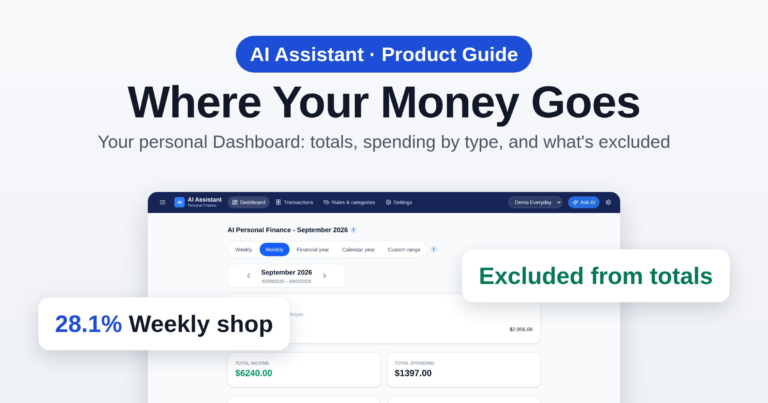
Where does the money actually go each month? The Personal side of Barnaby brings your everyday bank transactions into one list, has AI sort them into categories, and lets you shape those categories around the things you care about. Here’s how it works.
1. Yours to shape
This side of Barnaby isn’t about tax. Nothing here goes on a tax return. It’s simply a clear picture of your own money: what comes in, where it goes, and how that changes over time.
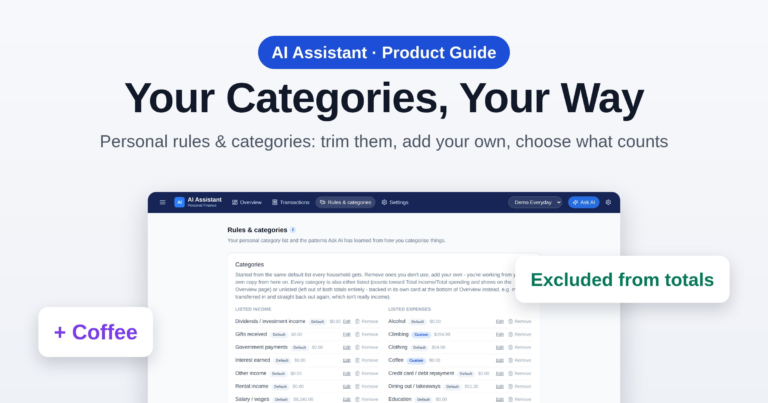
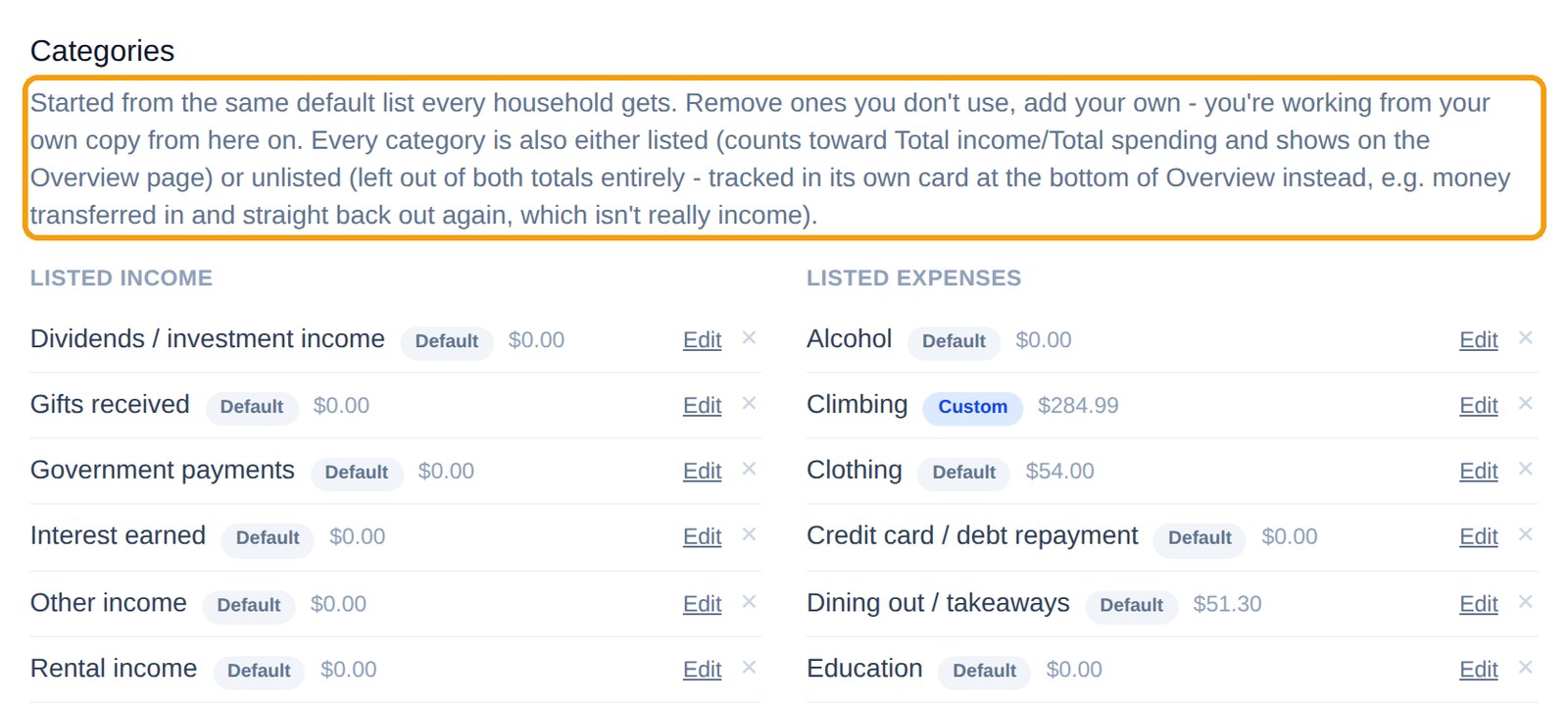
And everyone tracks their money differently. One person wants every coffee counted; another only cares about the big bills, or the cost of a hobby, or how much the kids really cost. So the categories you start with are only suggestions, a sensible New Zealand starting list. Keep what’s useful, rename or remove the rest, and add your own. It’s your copy of the list, and you can change it whenever you like.
2. Bring your transactions in
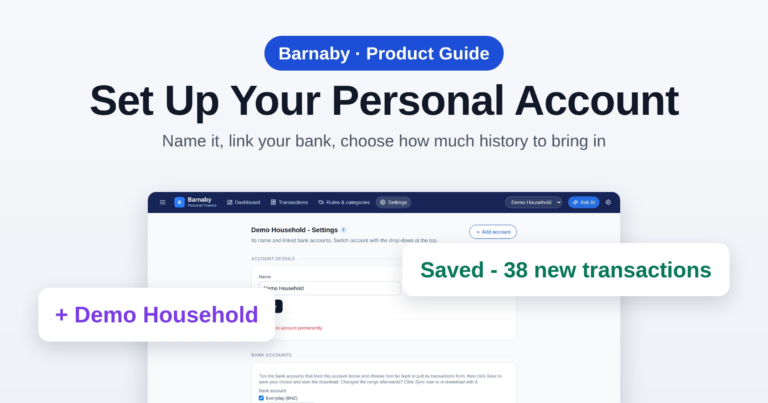
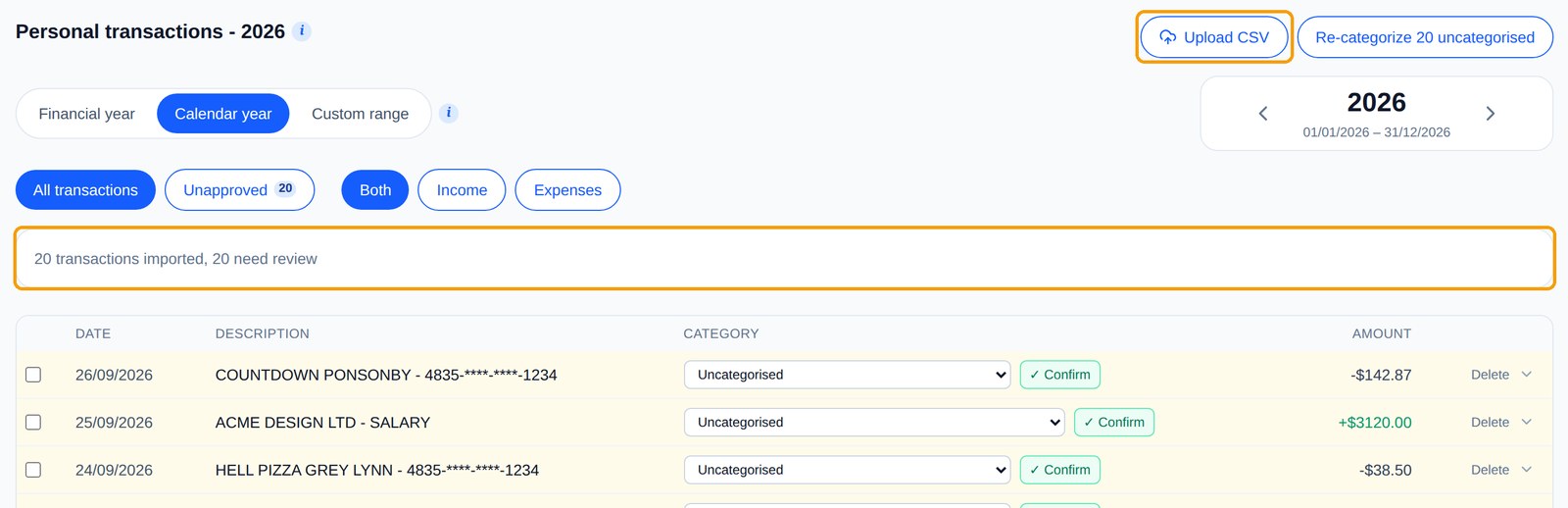
Each personal account — your everyday account, a joint account, savings — keeps its own transactions. Pick the account at the top of the screen, click Upload OFX statement and choose the OFX file you exported from your bank’s website (pick OFX as the format). The transactions land in that account, marked for a quick check.
Paid cash, or something’s missing from the bank file? Use Add a transaction by hand at the bottom of the page.

3. Find what you need
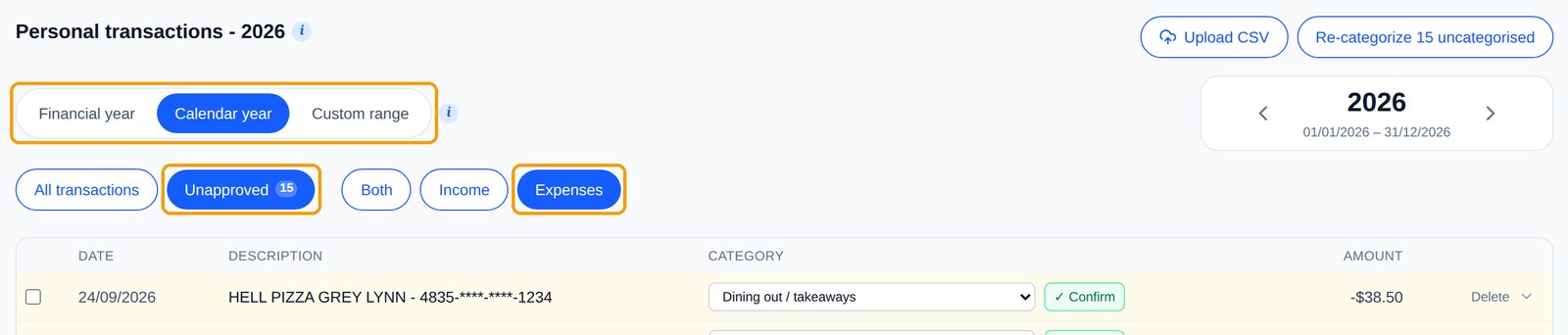
The list opens on the current calendar year, because that’s how most of us think about spending. Switch to a financial year or pick your own dates. The filters above the table show just the rows still to check (Unapproved), or only money in or money out.
4. Let AI have a go
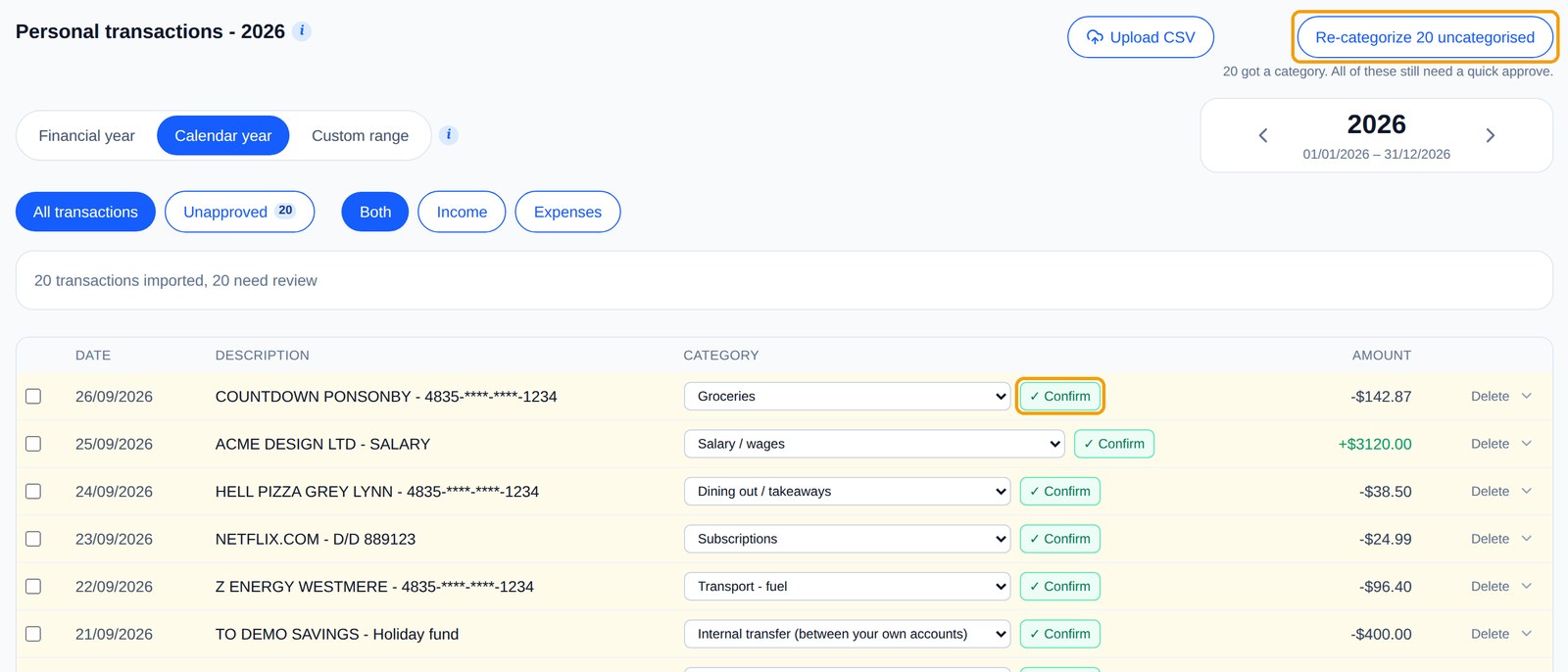
Click Re-categorize and Barnaby suggests a category for every new row. It uses the patterns it has already learned from you first, then reads each description for the rest — the supermarket comes back as Groceries, the power bill as Power / gas. If a suggestion’s right, click Confirm. If not, pick a better one and it’s approved straight away.
5. Sort a batch at once
Change one transaction’s category and Barnaby finds the others with the same description — every shop at the same supermarket, say — and offers to change them too. Tick the ones you want and apply.
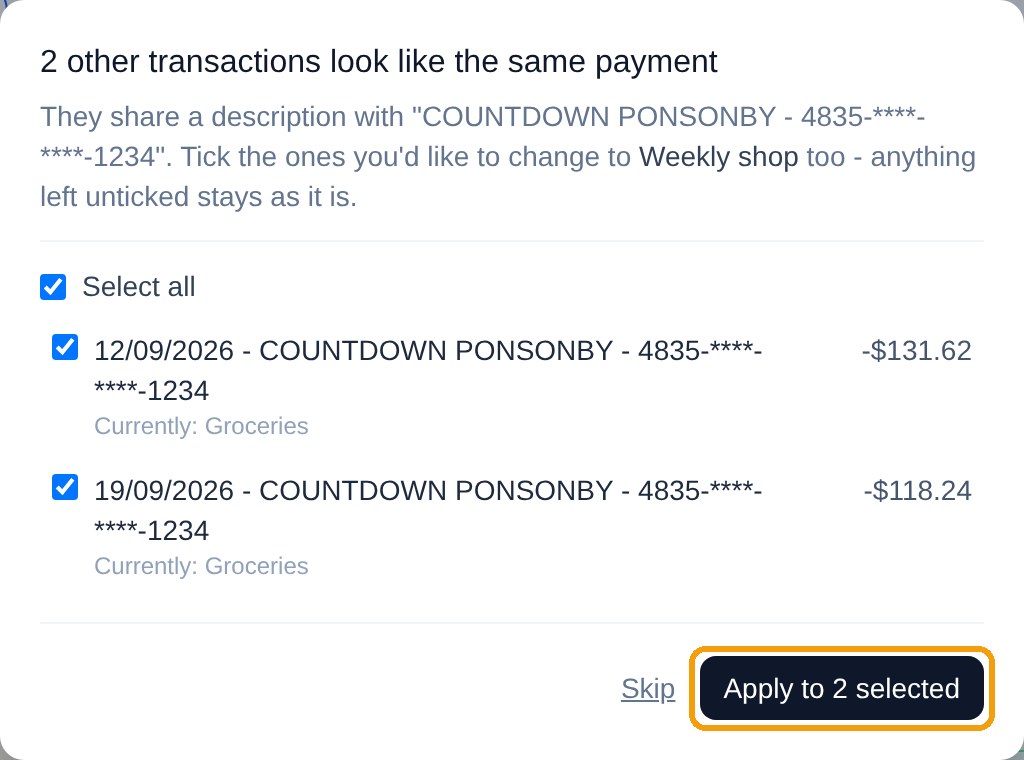
You can also tick several rows yourself and confirm or categorise them all together. Every choice you make becomes a learned rule, so next month the same payments sort themselves.

6. Make the categories yours
Want a category that isn’t there? Choose + Add new category right from a transaction’s drop-down — Climbing for a hobby, Weekly shop for the supermarket run — and that transaction moves into it straight away.

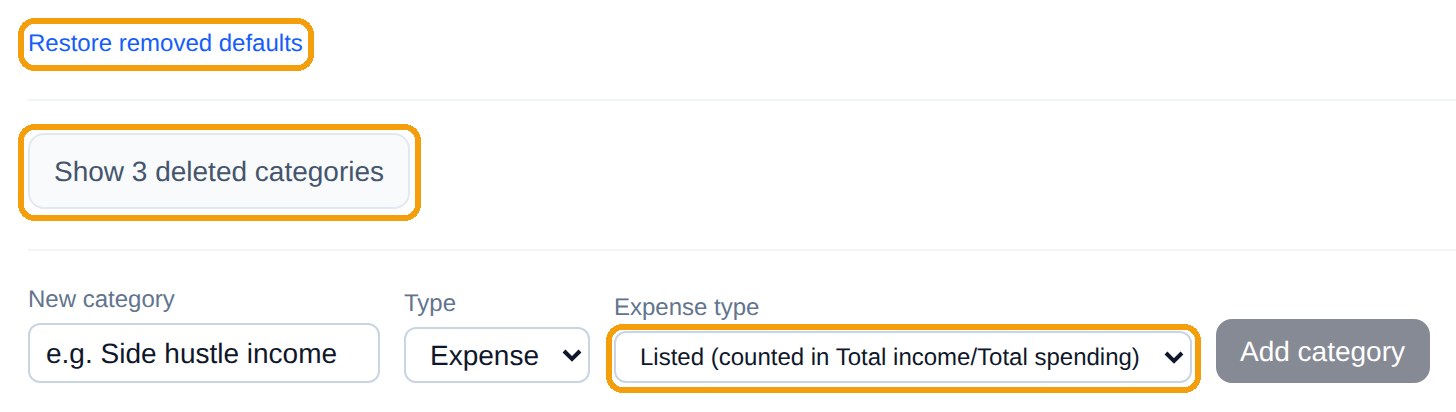
To tidy the whole list, open Rules & categories. Remove the ones you’ll never use (they’re kept, and Restore removed defaults brings them back), rename anything, and choose whether each category counts toward your Total income and Total spending. Transfers between your own accounts are left out by default, because moving money into savings isn’t really spending.
See where your money goes
Bring in your transactions and sort them into categories that make sense to you.
Get startedScreenshots use a test account with made-up transactions. Barnaby’s personal side is for keeping track of your own money; it isn’t financial advice.