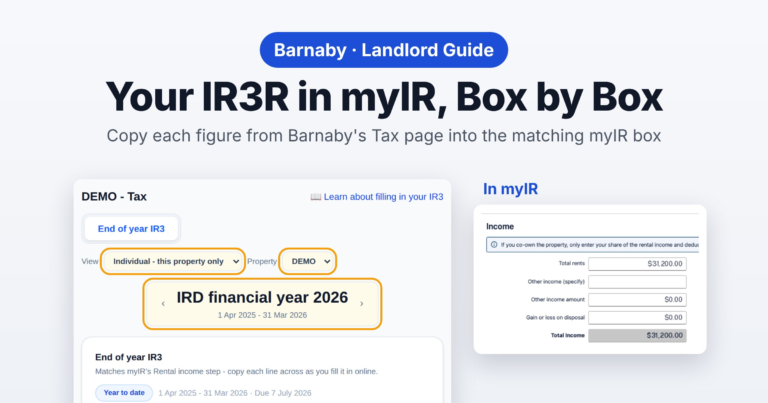
Own a rental? Each year your income tax return has a rental income section, the IR3R, with a box for every figure IRD wants. Barnaby’s Tax page works those figures out from your transactions and lists them under the same names as myIR’s boxes, so filing is a matter of copying each one across. Here’s the whole thing, step by step.
1. Before you start
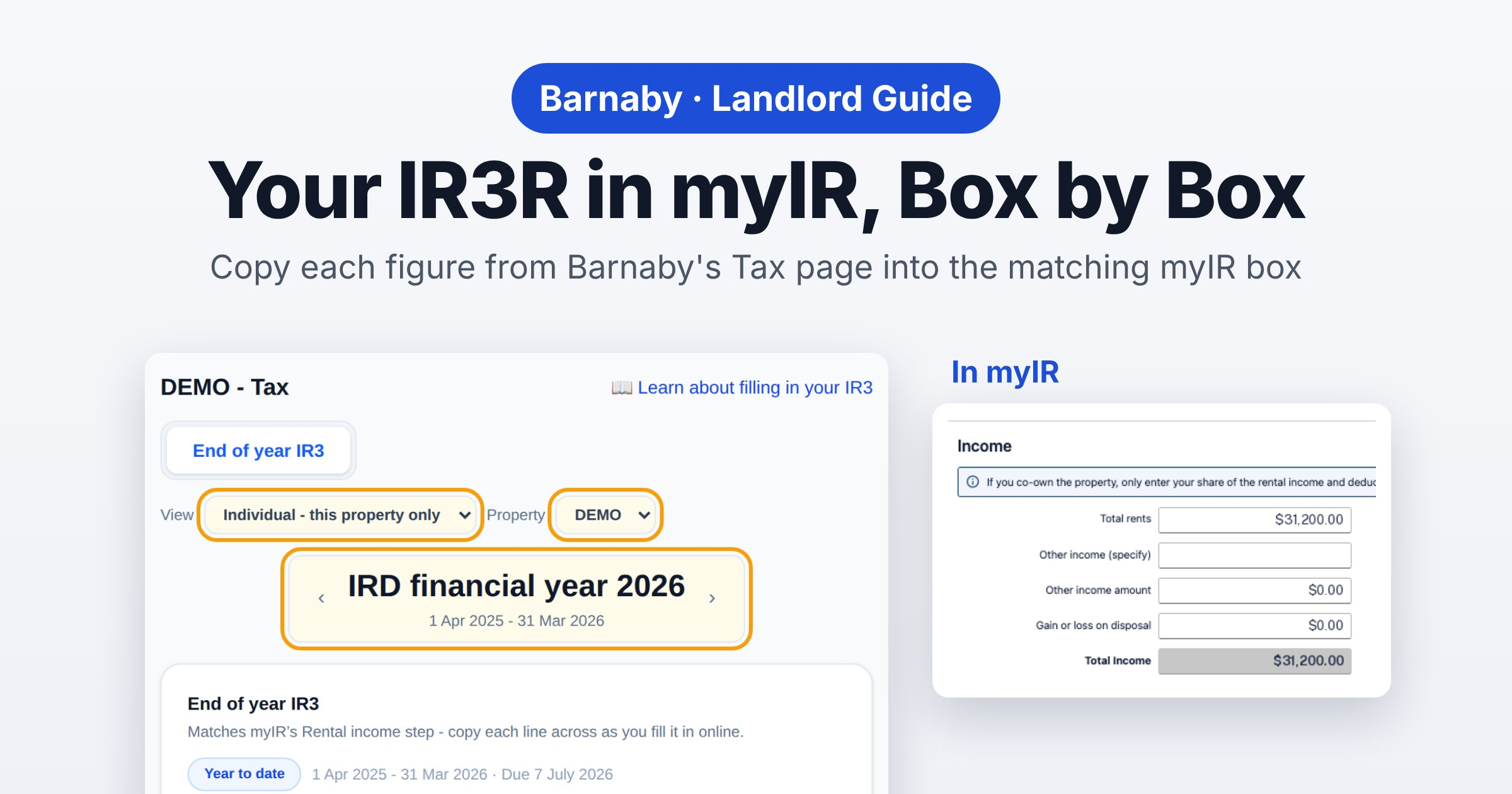
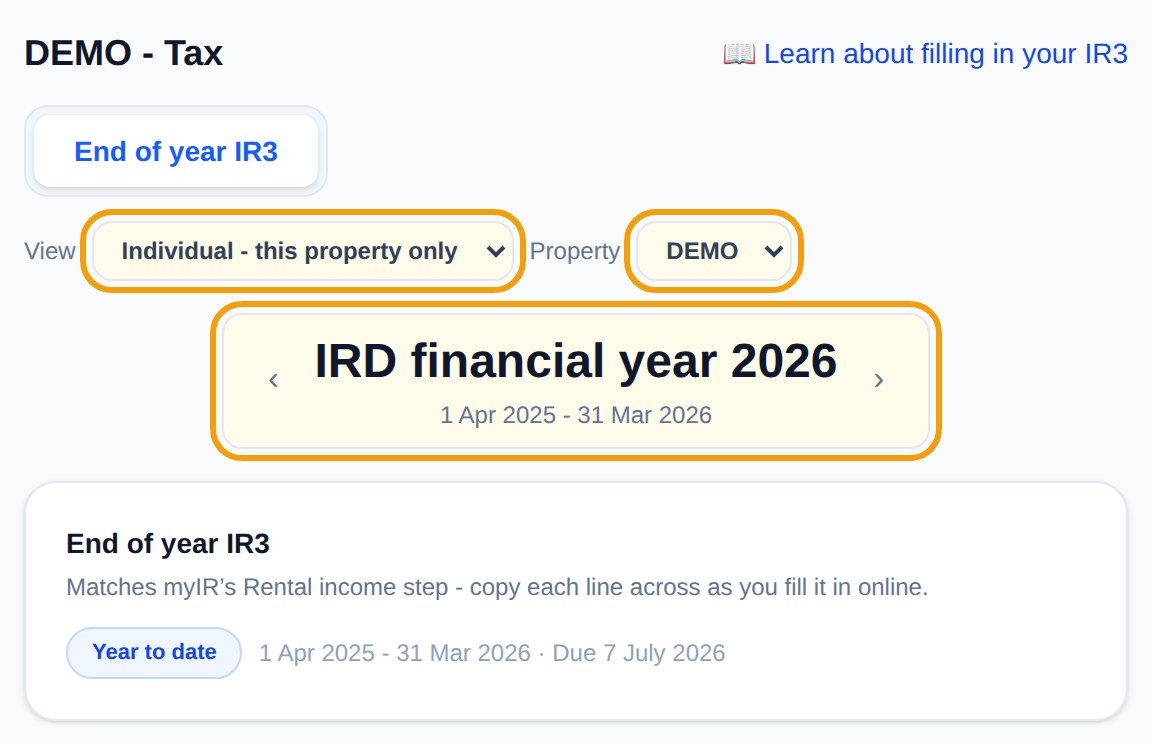
In Barnaby, open Tax. Choose Individual – this property only, pick the property, and use the arrows to select the IRD financial year you’re filing (1 April to 31 March). Every line has a Copy button that copies the amount, ready to paste. Then open myIR in another window, so you can see both side by side.
2. Tick residential property
In myIR, start your Income tax return. On Build your return, under Select the income types that apply, tick Income and expenses from residential property.
Don’t tick Other rental income for a normal residential rental. That one is for commercial rents, a holiday home under the mixed-use asset rules, renting out your family home, or property held as part of a land-dealing business.

3. Add the IR3R
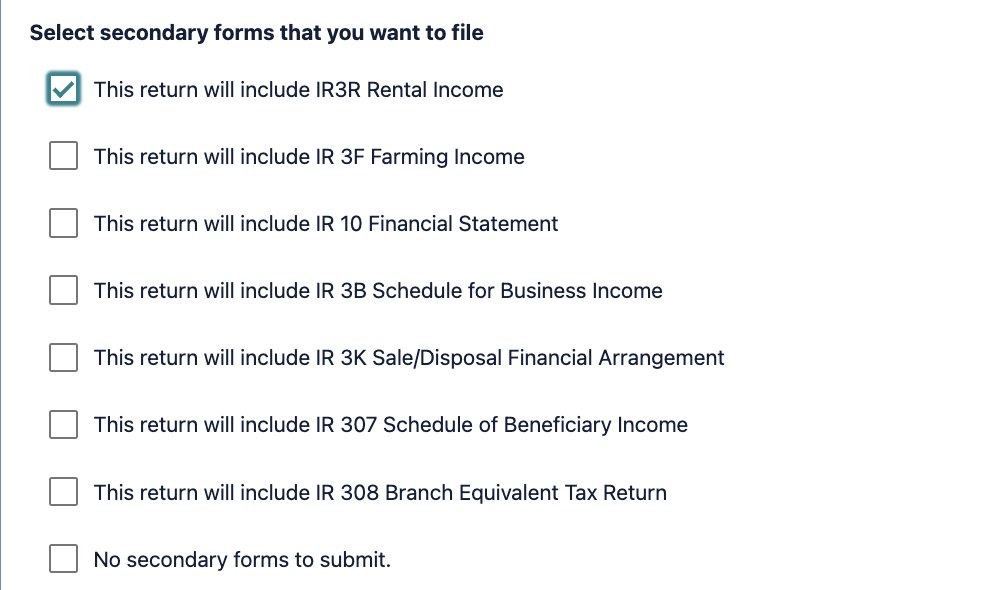
Keep going to Secondary forms and tick This return will include IR3R Rental Income. That adds the Rental income and Depreciation steps, where the figures go.
4. Property information and income
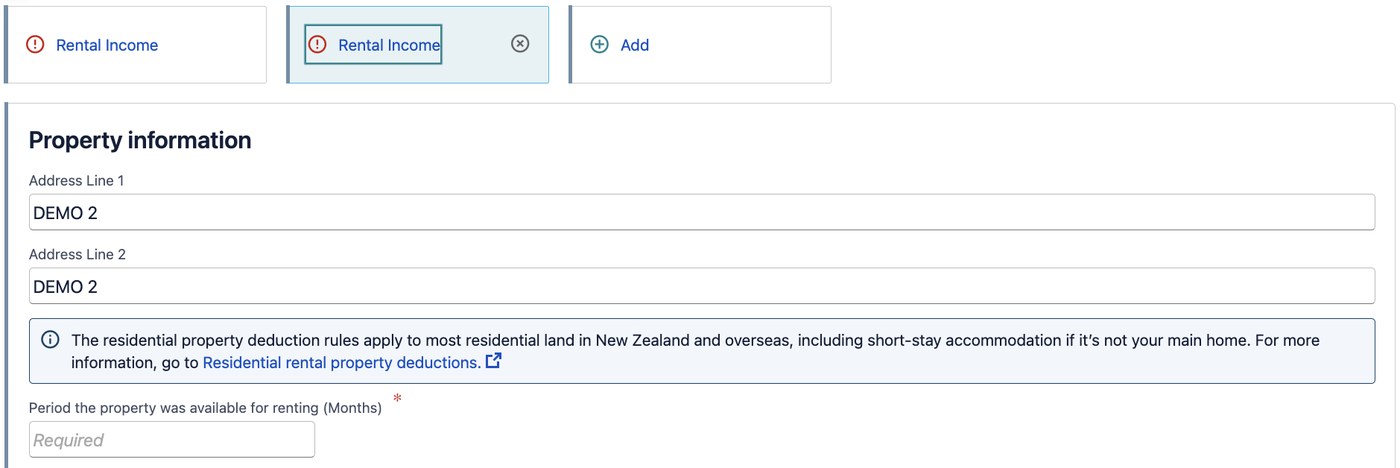
Enter the property’s address, then the period the property was available for renting, in months. That’s usually 12. Enter fewer if you bought or sold it during the year, or it wasn’t available to rent for part of it.
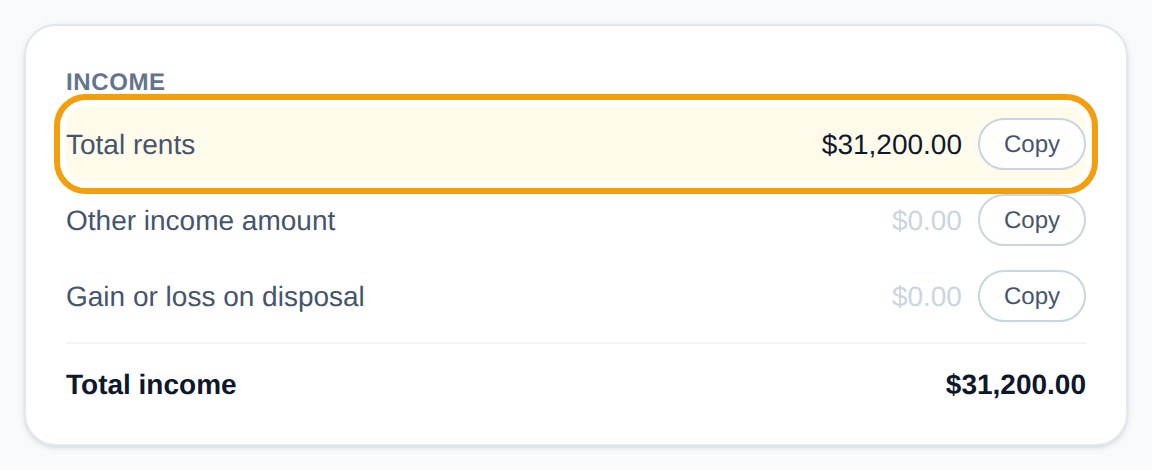
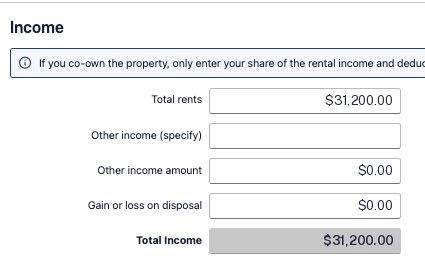
Copy Total rents into Total rents. Other income amount and Gain or loss on disposal are usually $0. myIR adds up Total Income for you, and it should match the Tax page. If you co-own the property, myIR wants your share of the income and deductions only.
5. Expenses, repairs and other expenses
Rates, Insurance, Interest and Agent’s collection fees each go straight into the myIR box with the same name.
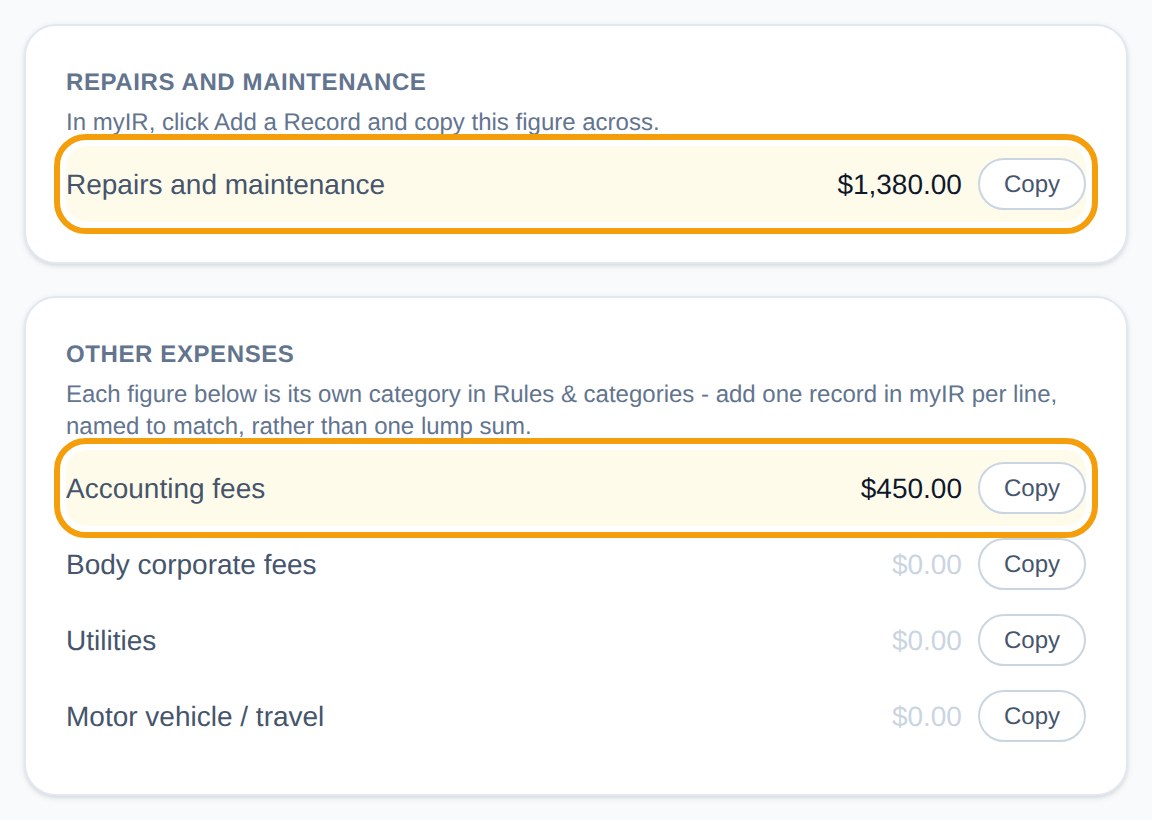
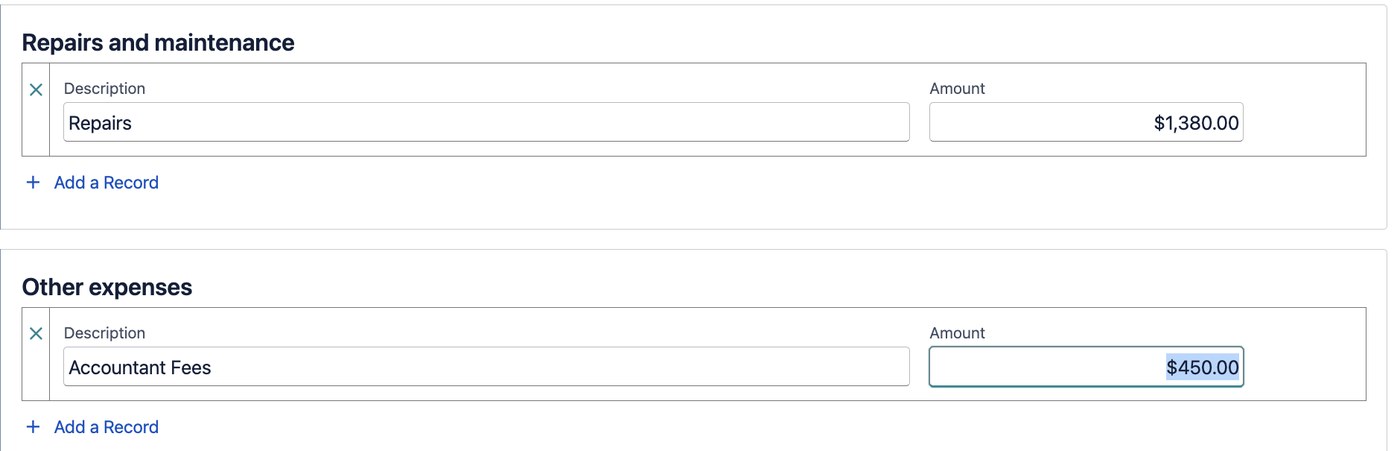
Repairs and other expenses work differently: in myIR they’re records, not boxes. Each record has a Description and an Amount. Under Repairs and maintenance, click Add a Record, type a short description such as Repairs, and copy the repairs figure into Amount. Under Other expenses, add one record for each line on the Tax page that has an amount, like accounting fees.
6. Depreciation and chattels
The next step in myIR is Depreciation. Buildings is $0, because residential buildings can’t be depreciated. Copy Assets into Assets: that’s the total depreciation for the property’s chattels this year (carpets, curtains, heat pumps and so on).
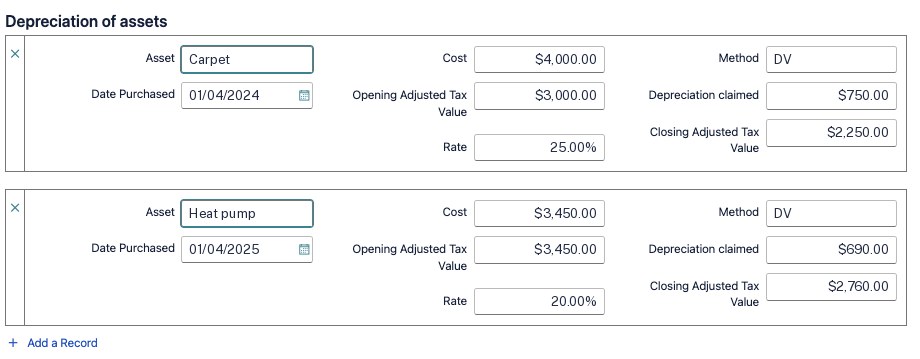
Then, under Depreciation of assets, click Add a Record once for each chattel listed on the Tax page, and copy its eight fields across: the asset, date purchased, cost, opening adjusted tax value, rate, method, depreciation claimed and closing adjusted tax value. The opening value is what the chattel was worth for tax at the start of the year (its cost, if you bought it this year); the closing value is what’s left after this year’s claim.
New to chattels? Read Chattel Depreciation for NZ Rental Properties for how the rates, the $1,000 write-off and replacements work.
7. Check the totals
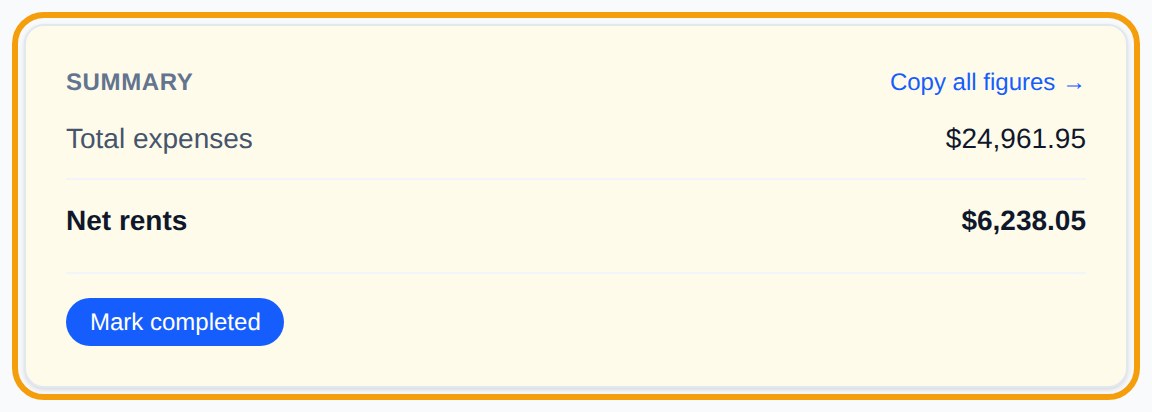
myIR’s Total expenses and Net rents should match the Summary on the Tax page. If they don’t, look for a box that was skipped or entered twice. Once you’ve filed, click Mark completed in Barnaby: that year’s figures lock in, even if a transaction is edited later, and Undo puts them back to live figures.
8. More than one rental
IRD wants a separate IR3R for each property you rent out, so each one gets its own Rental Income tab in myIR. When you’ve finished the first, click Add next to its tab. On the Tax page, switch the Property picker to the next property and work through the same steps again.
The Combined view adds all your properties together. It’s handy for seeing your whole portfolio at a glance, but don’t use it to fill in an IR3R.
Your IR3R figures, ready to copy
Barnaby sorts your rental’s bank transactions through the year, so the numbers are waiting when it’s time to file.
Get startedScreenshots use a test property with made-up figures. This guide explains how to copy Barnaby’s figures into myIR; it isn’t personalised tax advice. For anything unusual, check ird.govt.nz or ask an accountant.