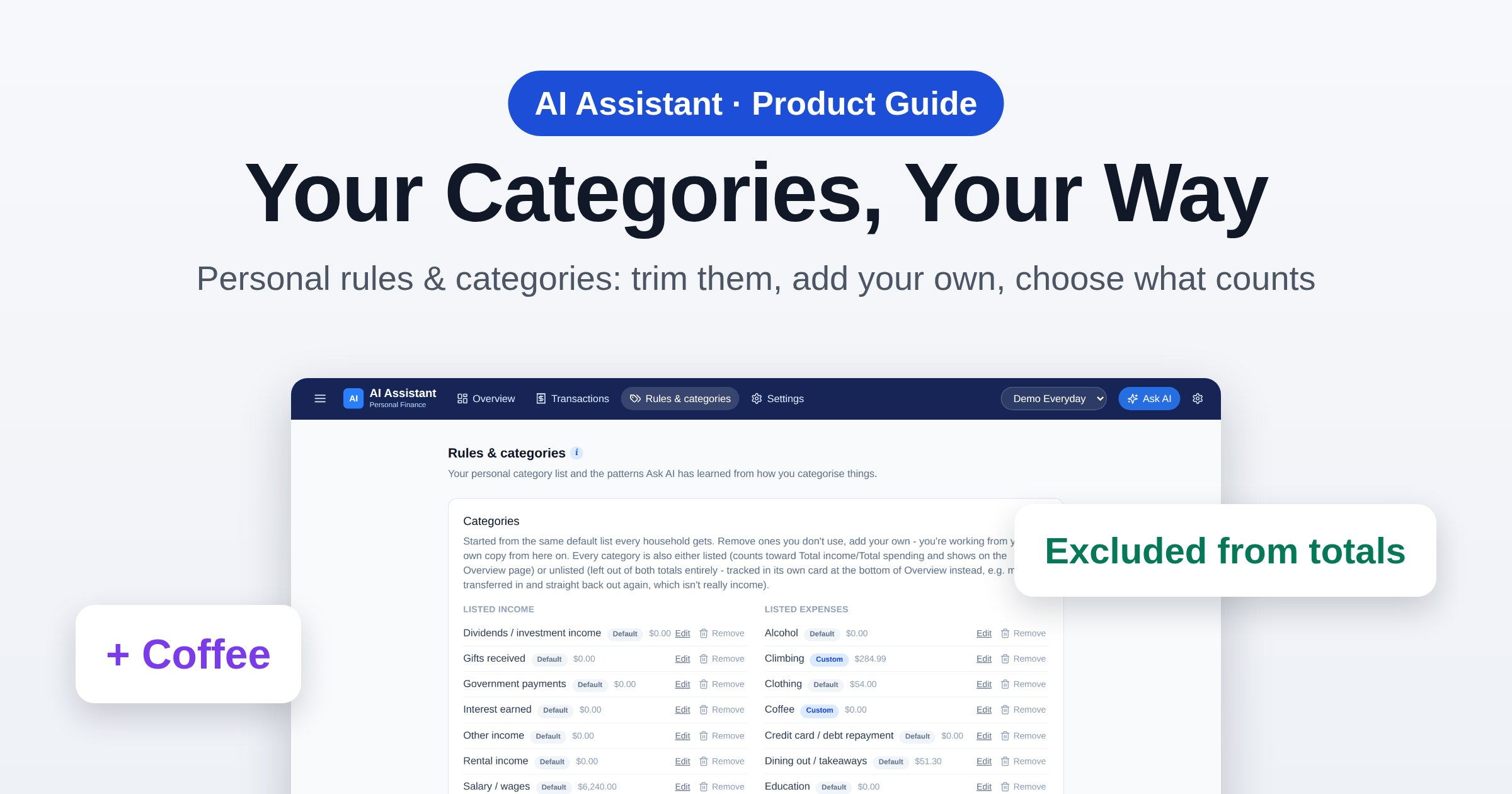
Nobody tracks their money the same way. The Rules & categories page on the Personal side of Barnaby lets you shape the category list around the things you care about: trim what you don’t need, add your own, and choose what counts toward your totals. Here’s how.
1. Yours to shape
This side of Barnaby isn’t about tax. Nothing here goes on a tax return. It’s simply for understanding your own spending and income, so there’s no right or wrong way to set it up.
Everyone starts from the same sensible default list, but from then on it’s your own copy. Open Personal, then Rules & categories, and add, remove, rename or regroup whatever you like, whenever you like.
2. Reading the list
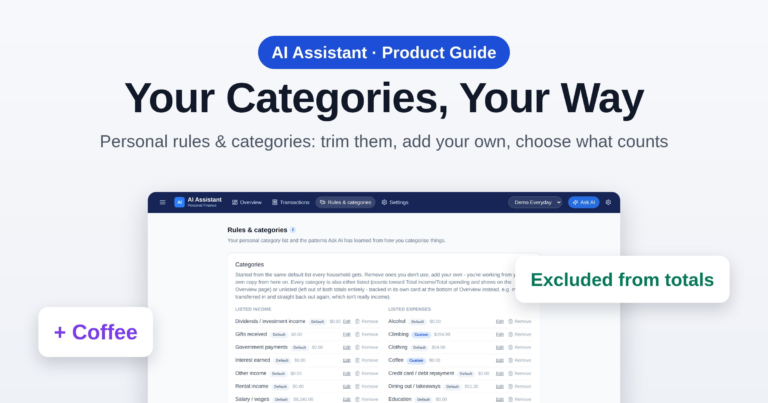
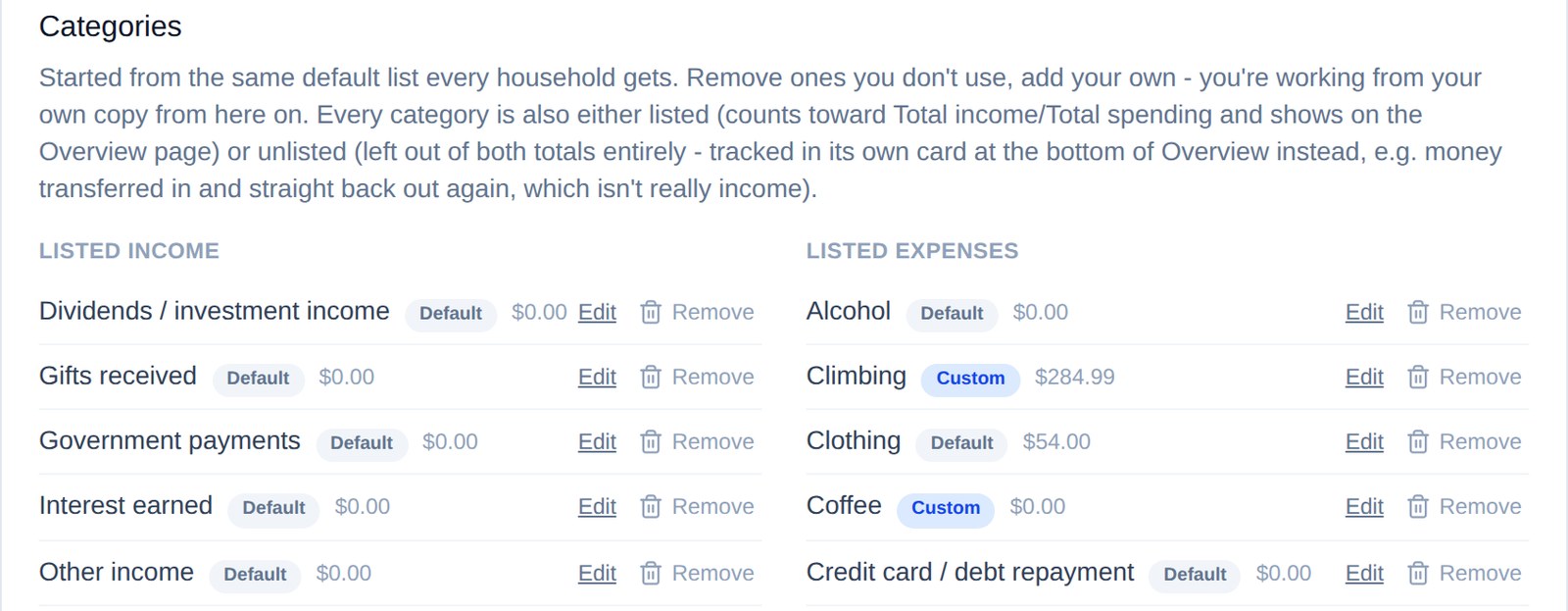
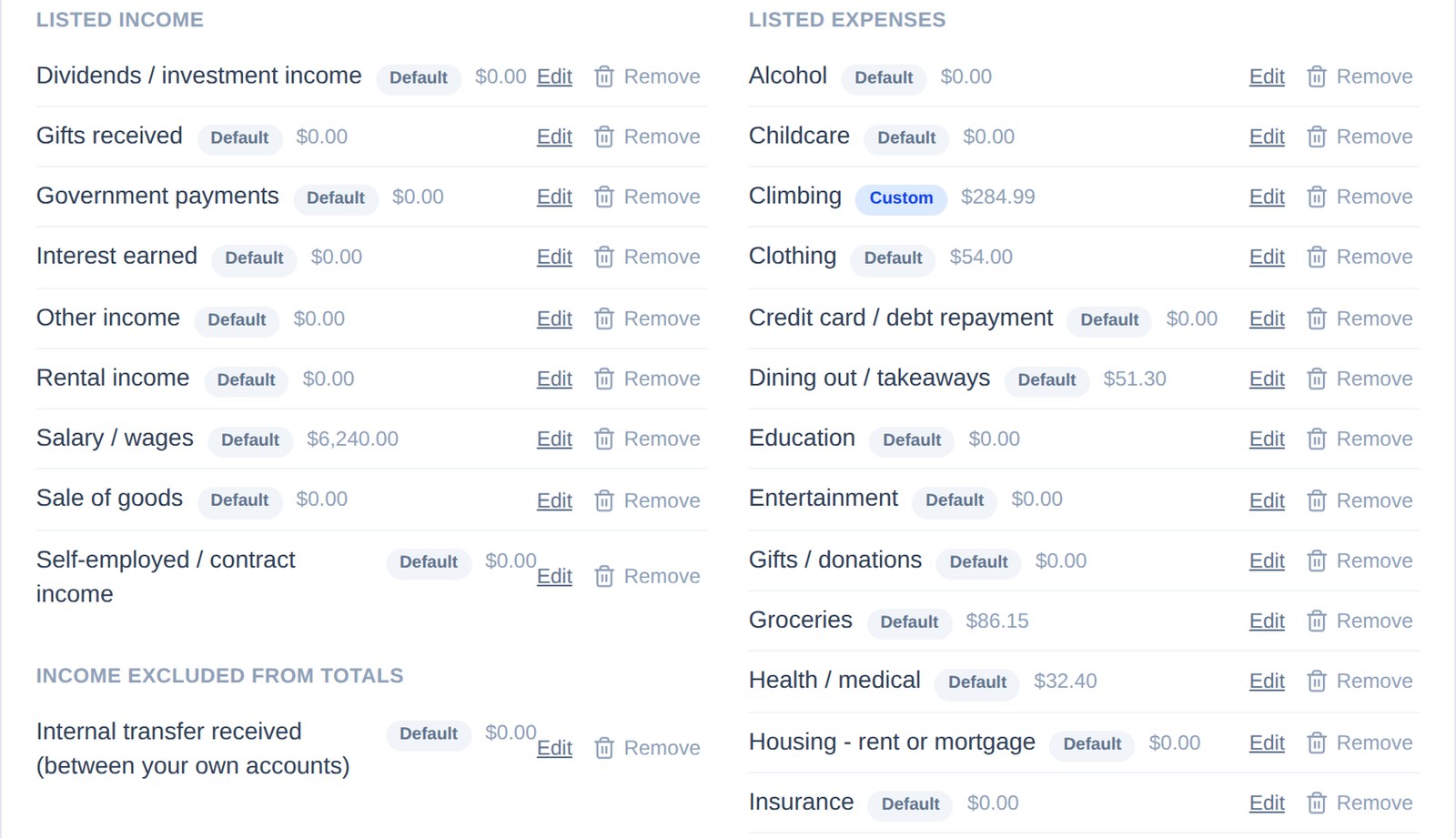
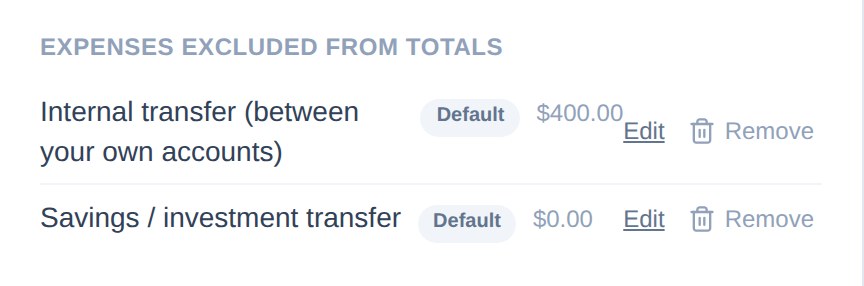
Every category sits in a group. Listed income and Listed expenses make up your Total income and Total spending on the Dashboard. The two excluded from totals groups are still tracked but left out of those totals — money moved between your own accounts sits there by default, because it isn’t really income or spending.
Each row shows whether it’s a Default category or your own Custom one, and its running total.
3. Trimming the list
The starting list is only a suggestion. If you’ll never use a category, click Remove (the bin) beside it and it’s gone from the list.
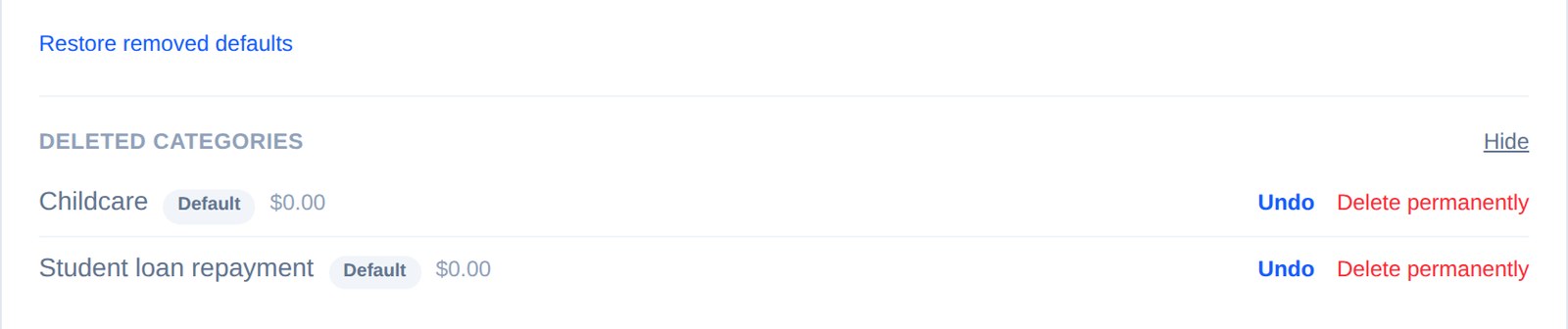
Nothing is lost. It moves to Deleted categories at the bottom of the card, where Undo brings it straight back, and Restore removed defaults brings every default you’ve removed back at once. Delete permanently gets rid of one for good, but only once no transactions use it.
4. Adding your own
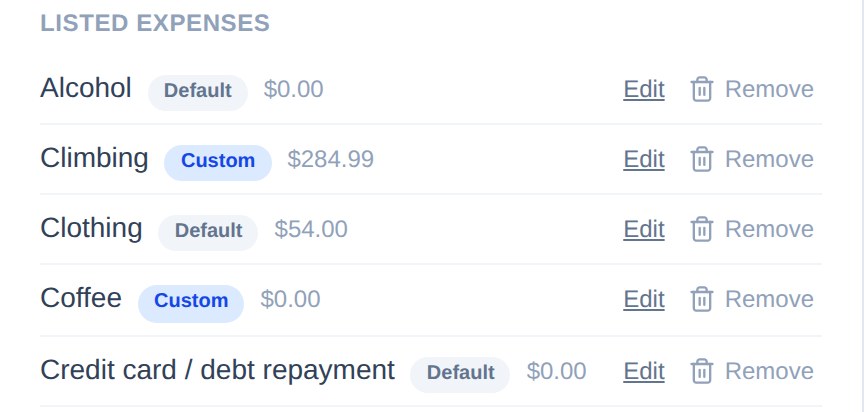
Add anything you want to keep an eye on: coffee, the dog, a hobby, a holiday fund. Type a name under New category, choose Expense or Income, choose whether it counts toward your totals, then click Add category.

It shows up straight away as Custom, ready to use on your transactions. Type the name of one you removed earlier and Barnaby offers to restore it instead.
5. Changing how one counts
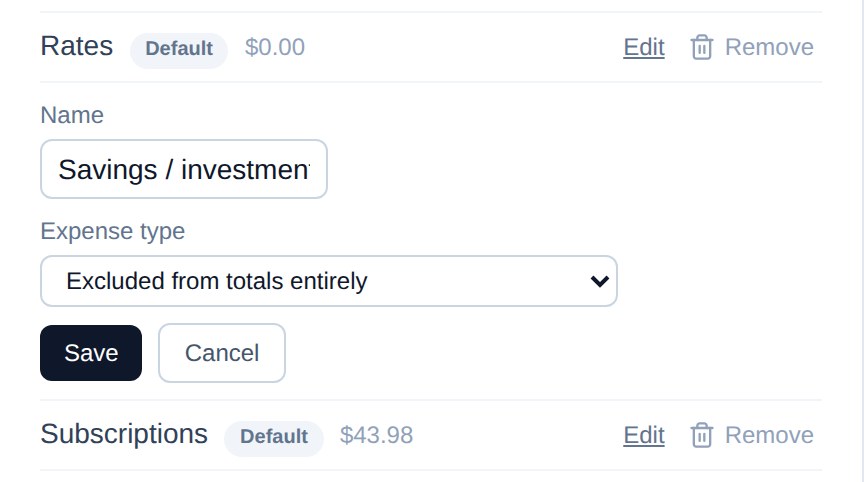
Click Edit to rename a category or change whether it counts toward your totals, then click Save. Some people see money put into savings as spending, others don’t — here Savings / investment transfer is moved out of the totals. It’s entirely your call.
6. Learned rules
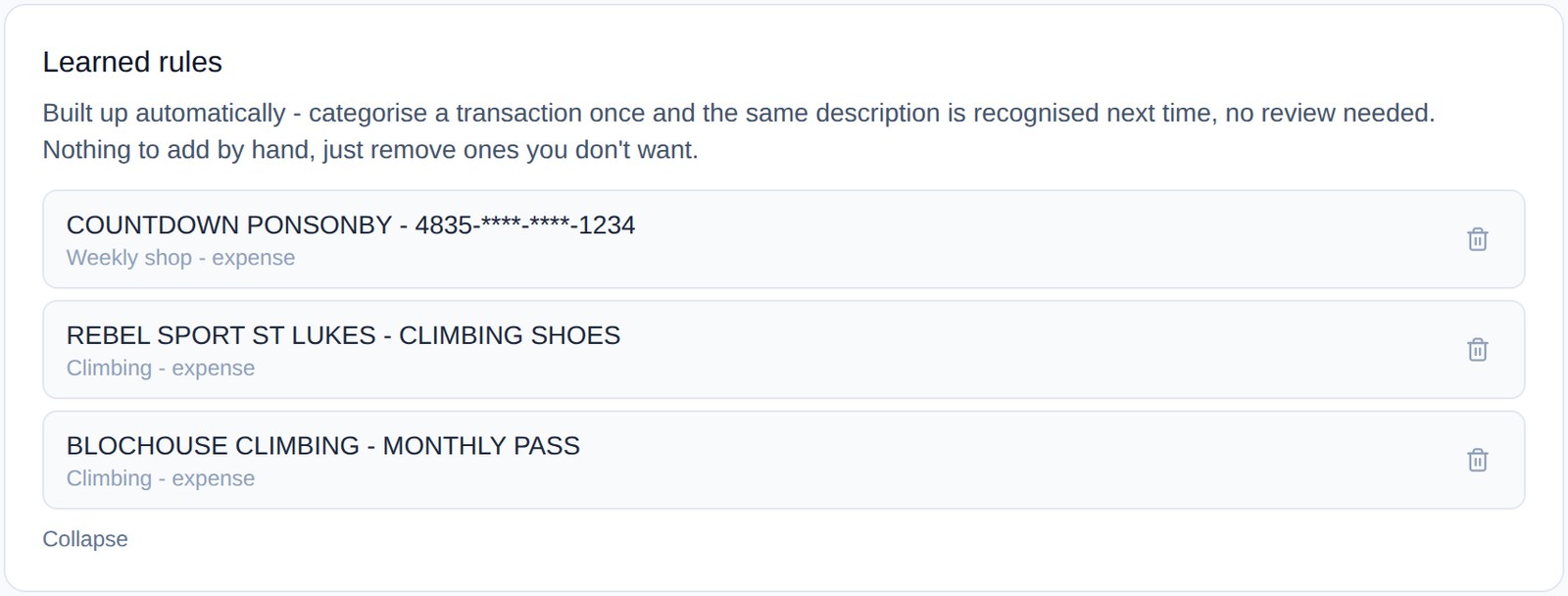
As you categorise transactions, Barnaby learns the patterns, so the same shop or payment is sorted for you next time. There’s nothing to set up. Open Show learned rules to see them, and if one has learned something wrong, click its bin to forget it.
7. See it on the Dashboard
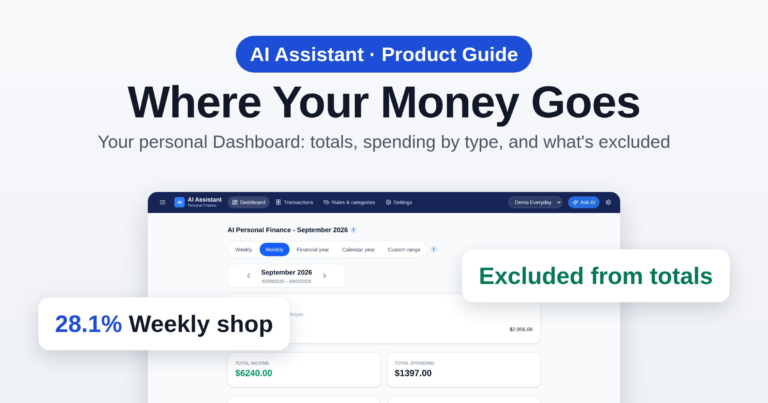
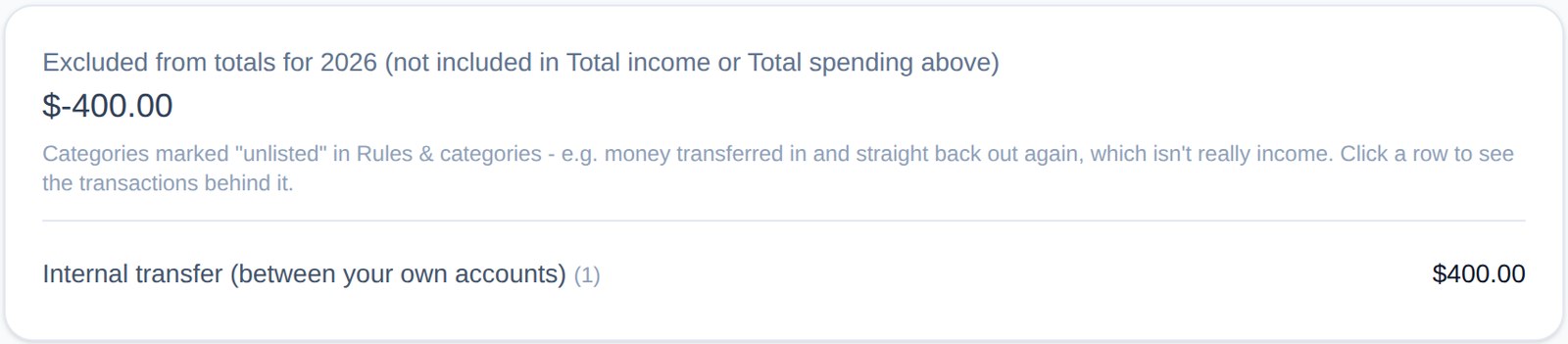
Your choices flow straight into the Dashboard. Listed categories make up Total income and Total spending.

Anything you’ve excluded sits in its own card at the bottom, so you can still see it without it skewing your totals.
Track your money your way
Shape your categories around what matters to you and see where the money goes.
Get startedScreenshots use a test account with made-up transactions. Barnaby’s personal side is for keeping track of your own money; it isn’t financial advice.