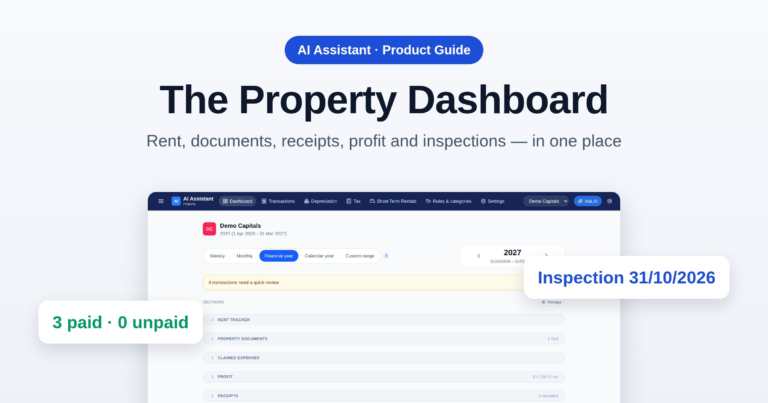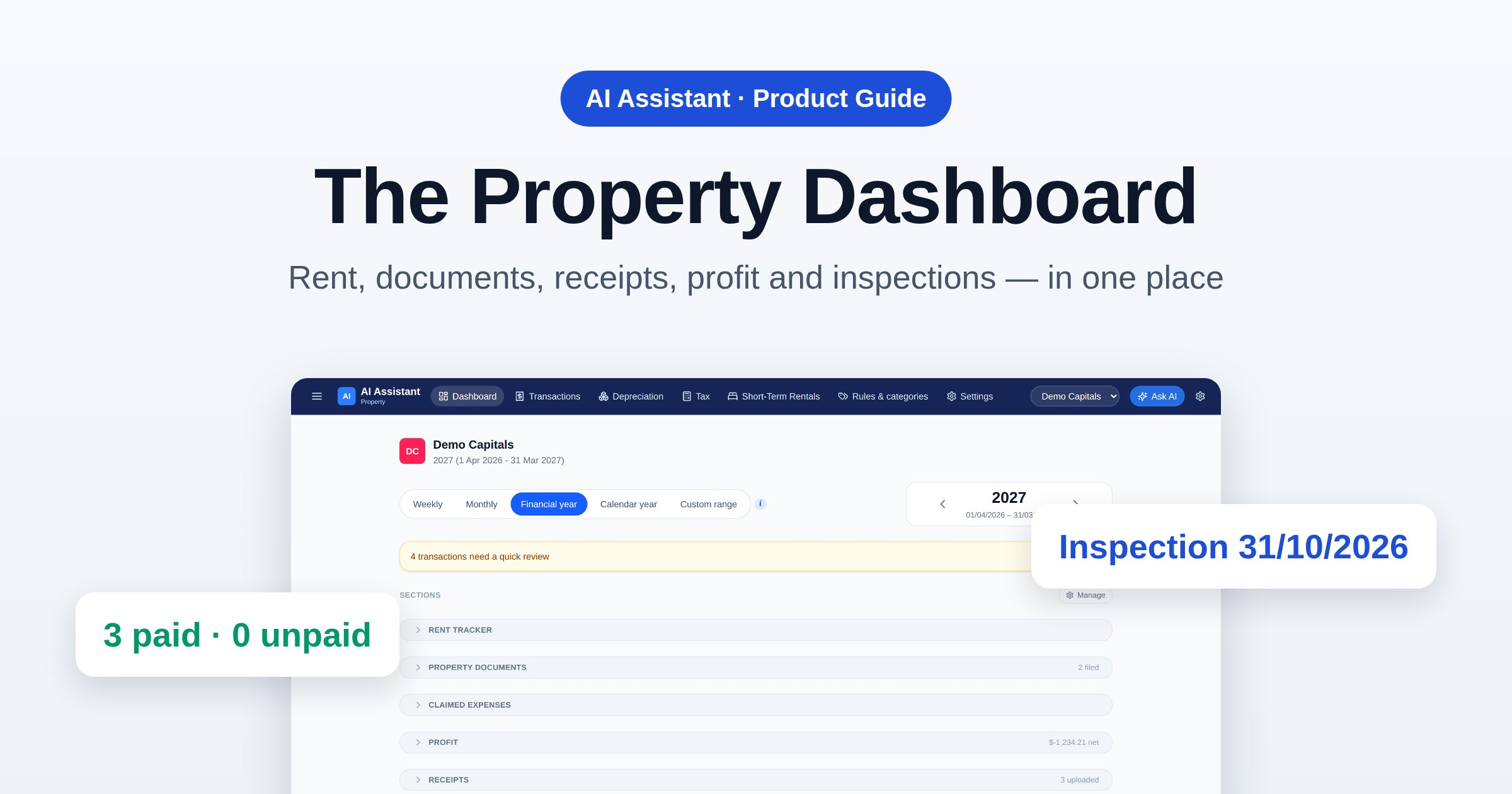
Owning a rental means keeping track of the rent, the tenancy paperwork, receipts, what the property actually makes, and when the next inspection and rates bill are due. The property Dashboard in Barnaby puts all of that on one page for each property. Here’s what each section shows and what you can do in it.
1. One page for each property
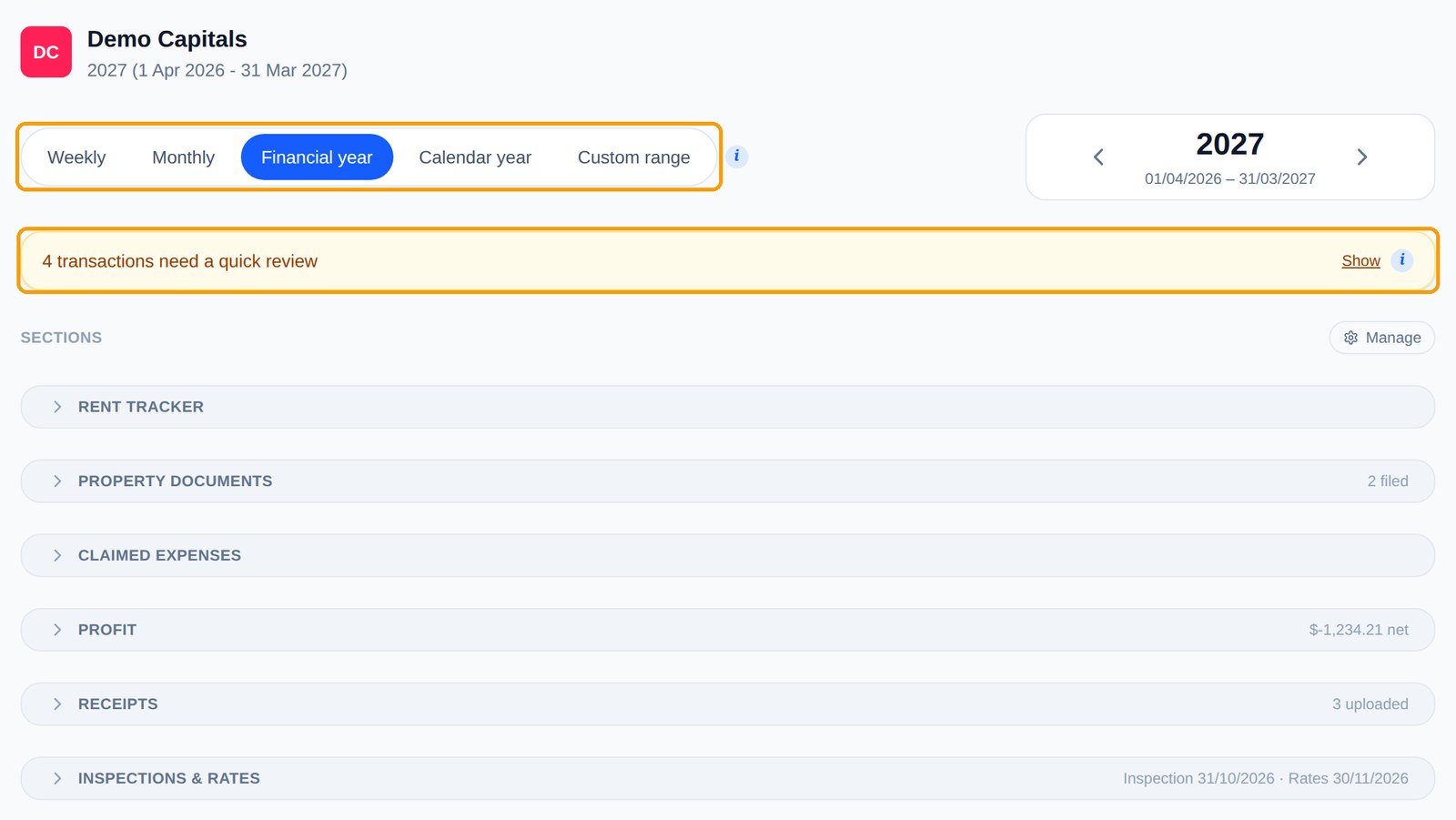
Each property has its own Dashboard. At the top you pick the time period — a week, a month, a financial year, a calendar year or any custom range — and everything on the page follows it. If any transactions had their category guessed and still need a quick look, an amber bar tells you how many and links straight to them.
Underneath is a list of sections. Each one folds down to a single line with a live summary on the right — 2 filed, 3 uploaded, the next inspection and rates dates — so you can see what needs attention without opening anything. Click Manage to drag the sections into whatever order suits you. If you’ve connected your bank, a Bank accounts section shows the balance of each account linked to the property.
2. Rent tracker
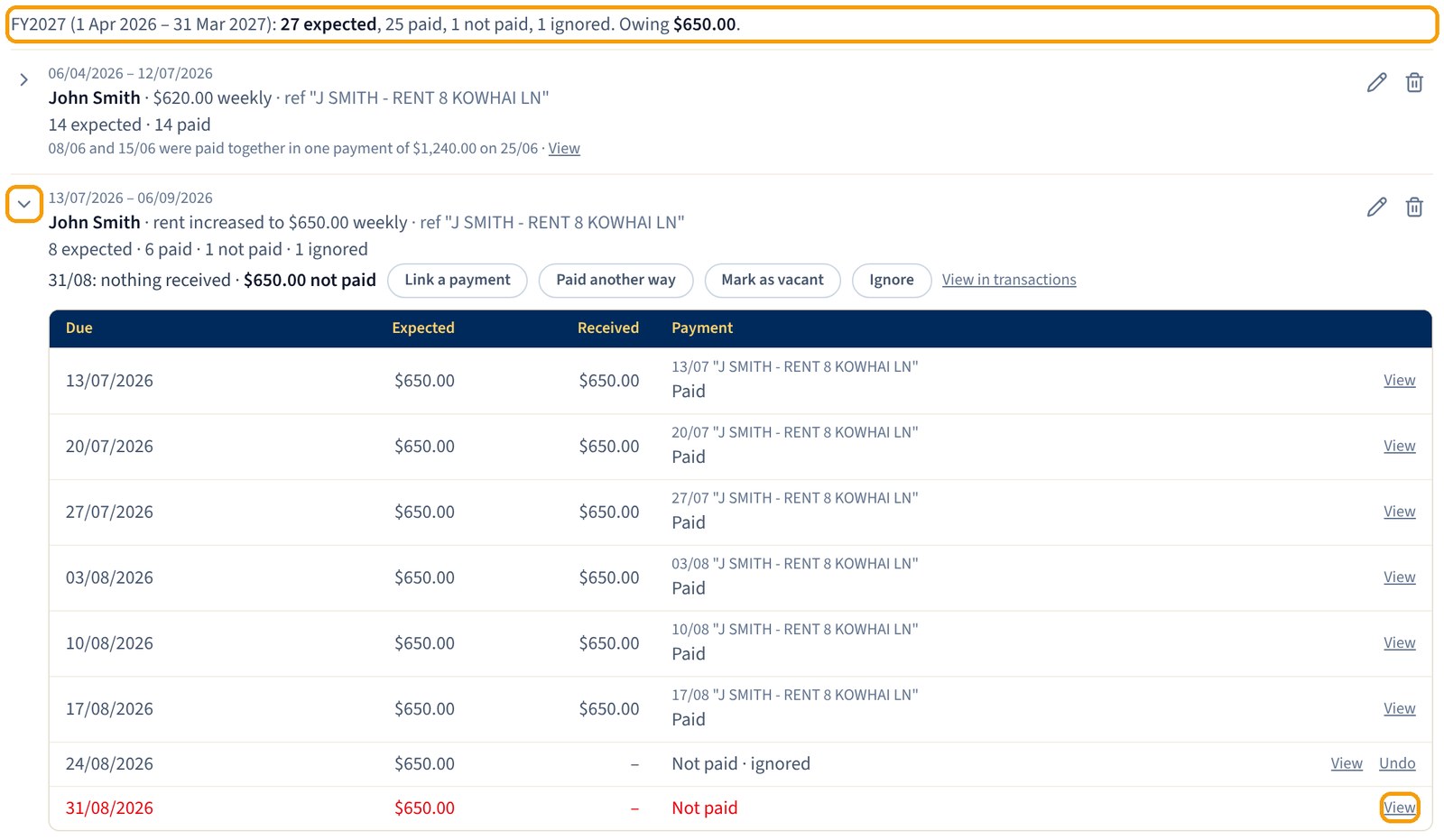
Rent tracker puts each tenant and each rent change on its own line: the dates, the rent, the payment reference, and how many payments were due against how many came in. The line at the top gives the totals for the period you’ve picked and what’s still owing. Click the arrow beside a line to see every due date, and View to jump straight to that payment in Transactions.
Setting it up: Work out with AI
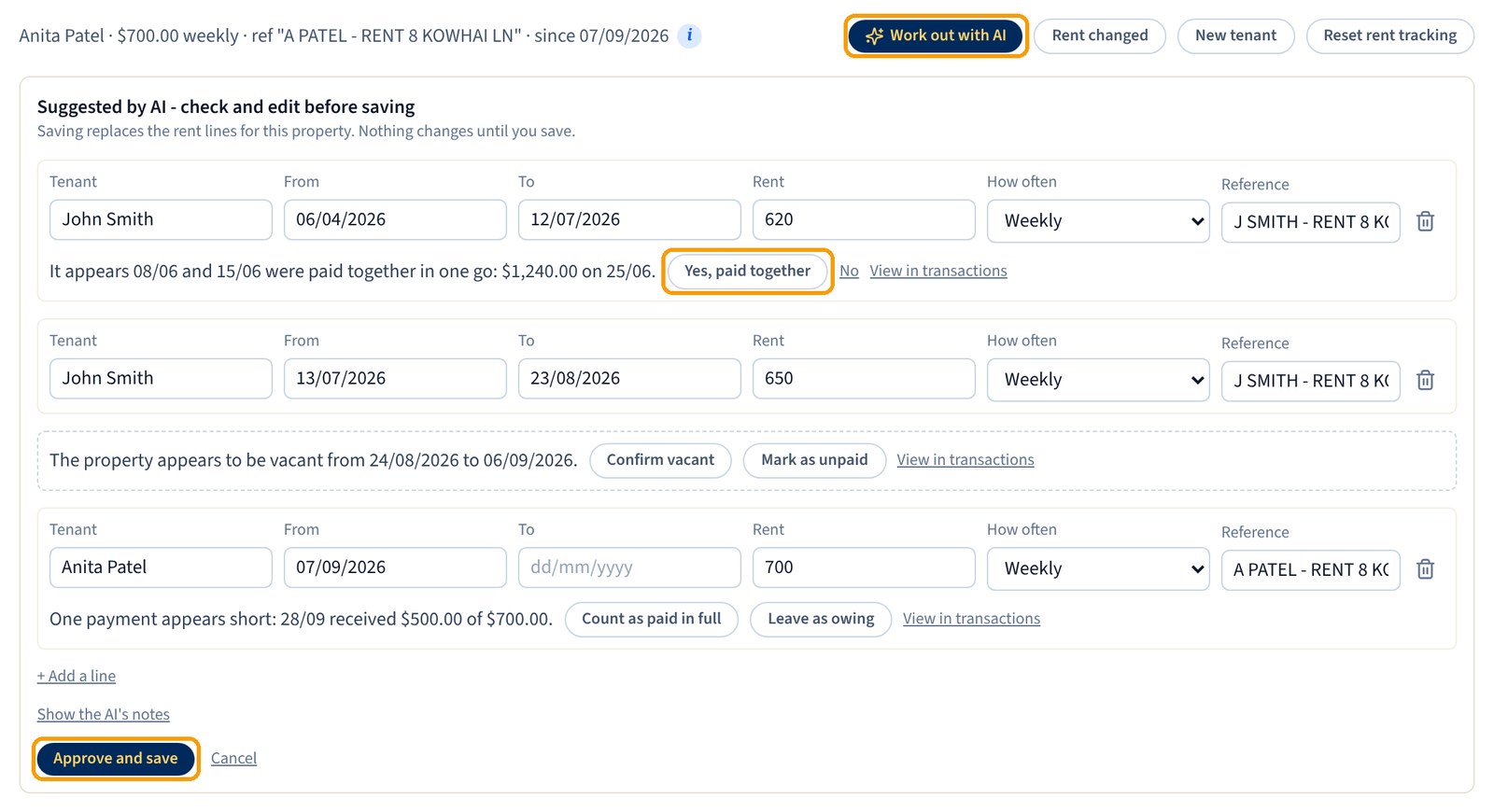
If rent is already coming in, click Work out with AI. Barnaby reads the rent payments in your bank transactions and suggests the whole history: each tenant, the rent, how often it’s paid, the dates and the payment reference. It also points out anything worth checking, such as two weeks paid together in one payment, a short payment, or a gap that looks like the property was empty. Edit anything that’s wrong, choose what to do with each point, then click Approve and save. Nothing changes until you save.
Rent rises and new tenants
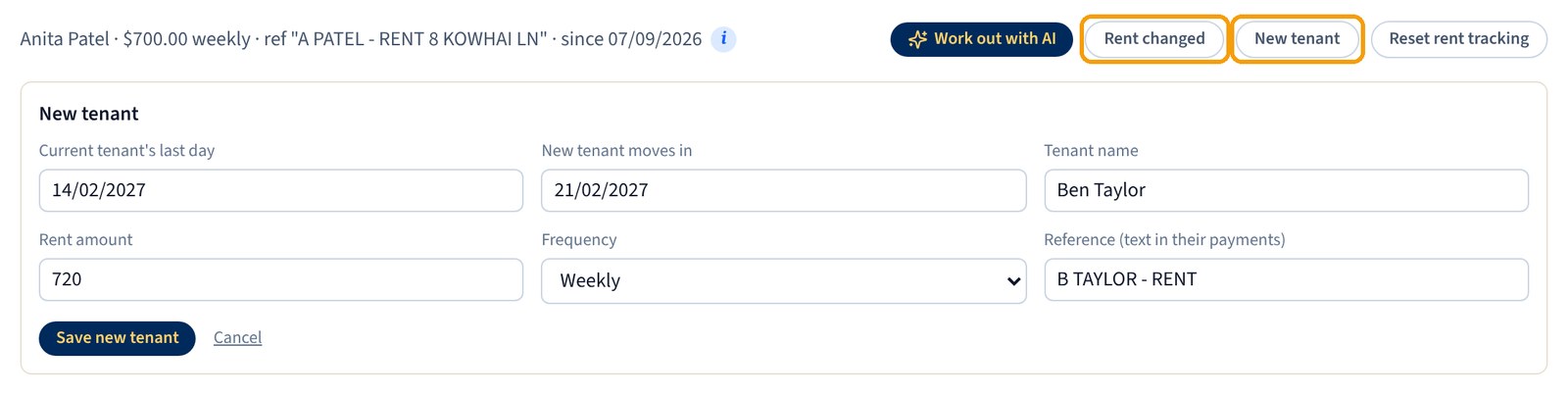
Click Rent changed when the rent goes up or down, or New tenant when someone moves out and someone new moves in. For a new tenant, enter the current tenant’s last day, the move-in date, their name, the rent, how often it’s paid and the reference their payments will use. Any weeks in between can be marked vacant, so they aren’t counted as owing.
Missed or short rent
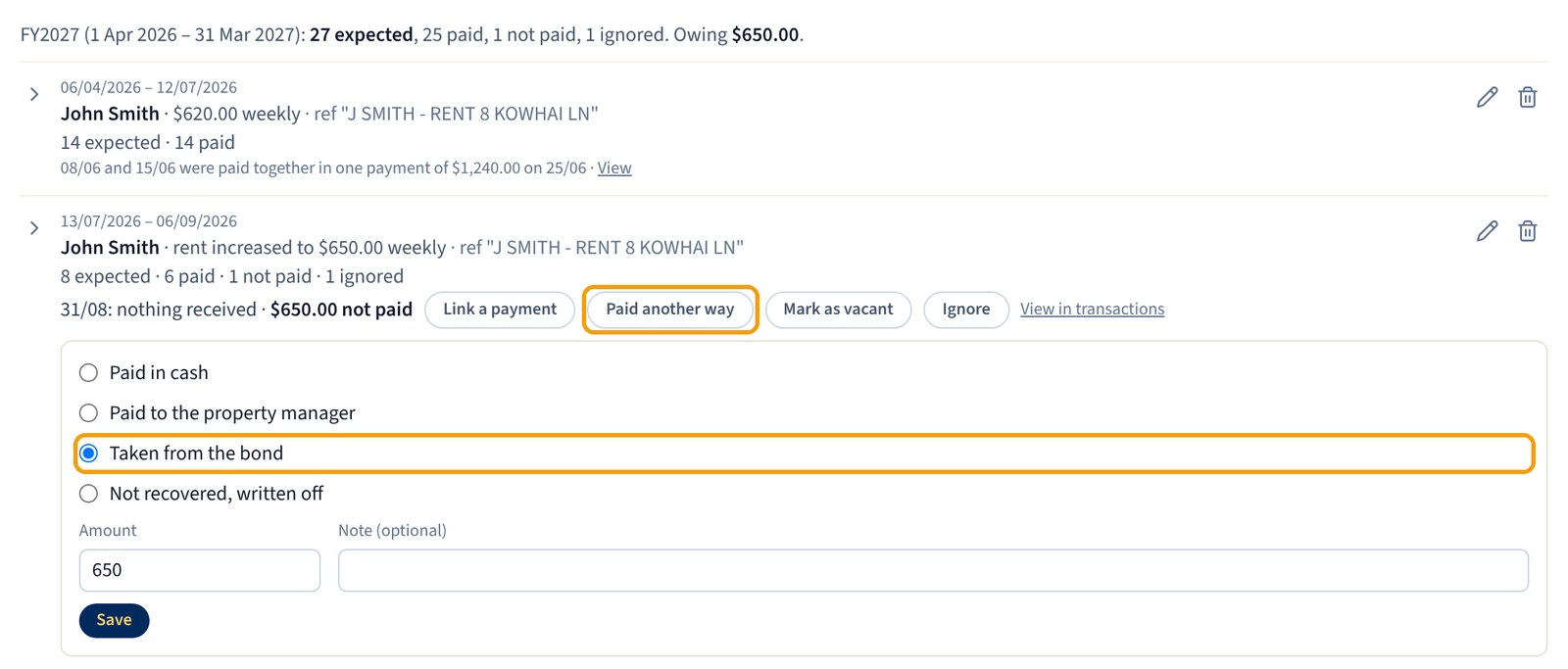
Anything missed or short is listed under its line, with buttons to sort it out:
- Link a payment when a later payment covered it.
- Paid another way for rent paid in cash, paid to the property manager, taken from the bond, or written off.
- Mark as vacant for a week with no tenant.
- Ignore for an agreed exception, like a rent-free week.
A short payment can be counted as paid in full or left as owing, and View in transactions shows the payments around that date.
3. Property documents
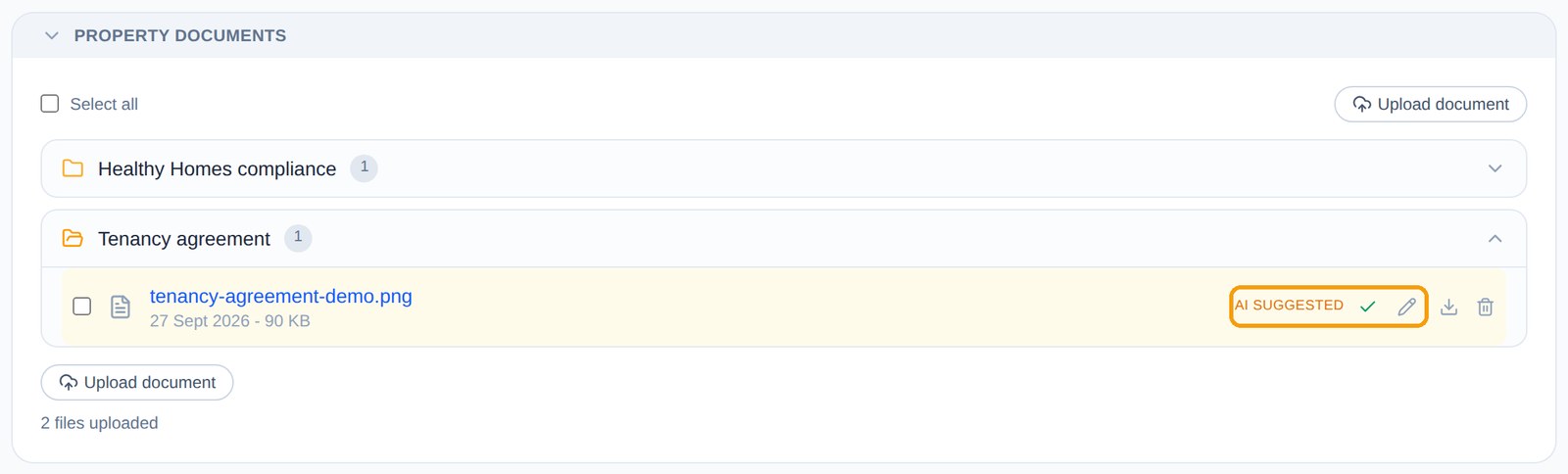
The tenancy agreement, Healthy Homes compliance statement, insurance policy, LIM report, rates notices — the paperwork a rental collects. Upload one or several files and Barnaby reads each one and files it in a folder for that kind of document, marked AI suggested until you approve it with the tick or move it with the pencil.
4. Receipts — and expenses paid another way
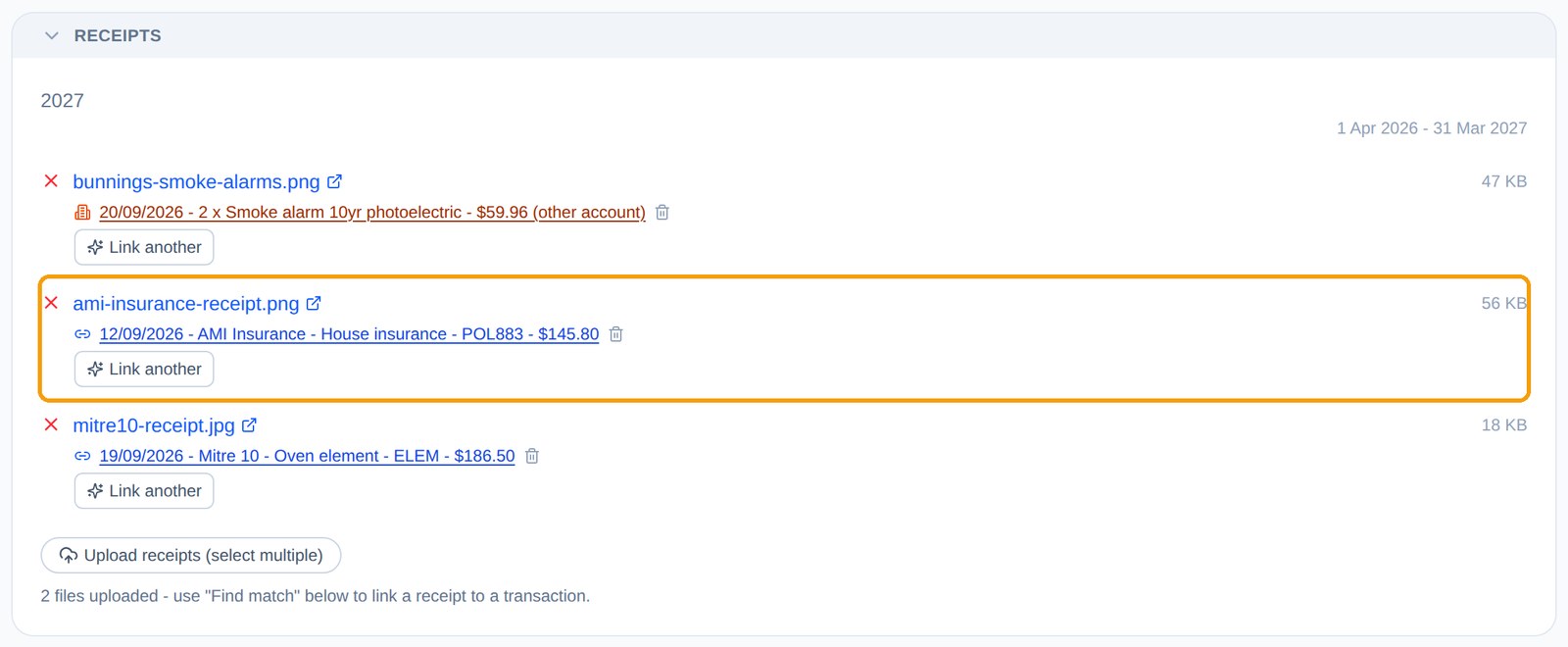
A receipt is the evidence behind a claim, so each one should be tied to the payment it covers. Upload a batch of photos or PDFs, then click Find match on a receipt. Barnaby reads it and suggests the bank transaction with the same amount and date. Tick every transaction the receipt covers and click Confirm match.

The receipt then shows the transaction it belongs to. Use Link another if one receipt covers a second payment, or Do not link for a document that will never have a matching payment.
Paid with cash or your own card
Not every property expense comes out of the property’s own account. For those, click Add external transaction on the receipt. Barnaby fills in the date, description and amount from the receipt; pick a category and confirm.

The expense appears in a Claimed expenses section with a link to its receipt, and it’s counted in your profit like any other claimable expense.

5. Profit
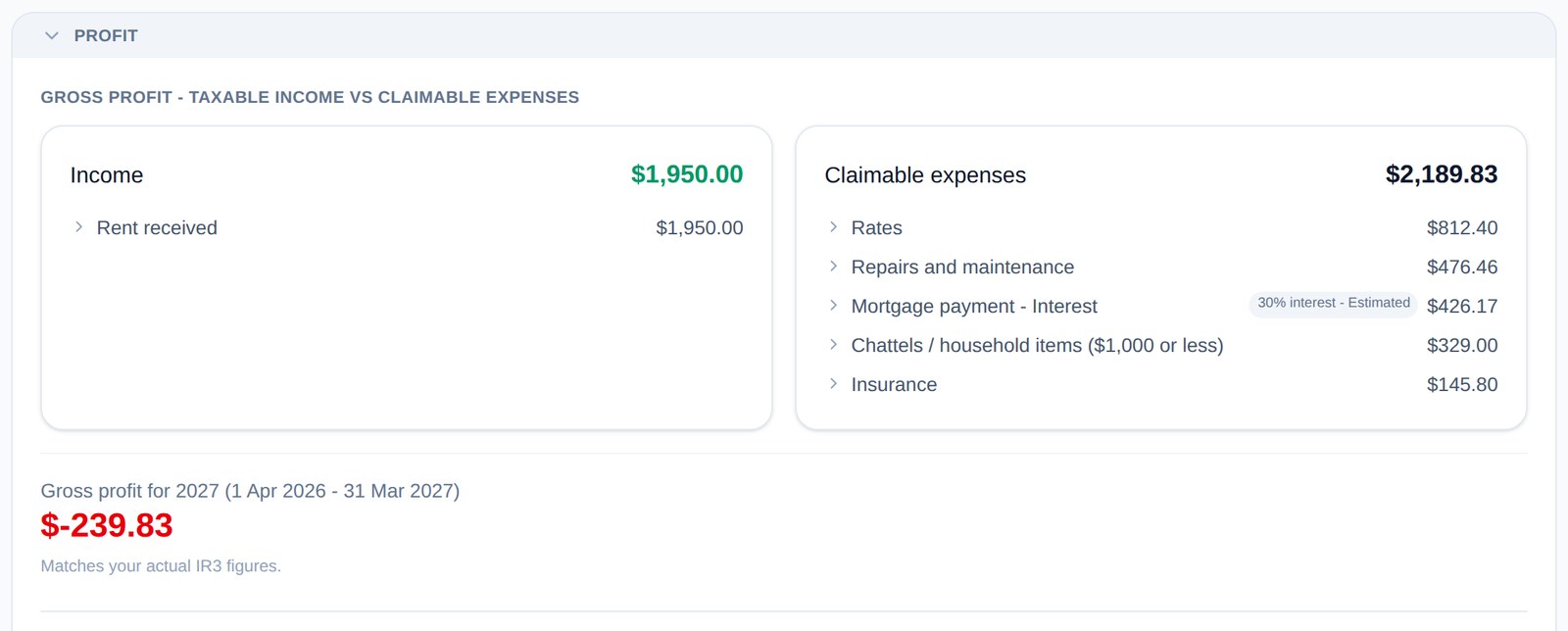
Gross profit compares your taxable rental income with the expenses you can claim, and matches the figures that go on your IR3. Net profit adds the costs you can’t claim — like the principal part of your mortgage repayments — for a plain “how is this property actually doing” view. Click any line to see the transactions behind it. Your estimated tax for the year is on the Tax page, under Tax estimate.
6. Inspections & rates
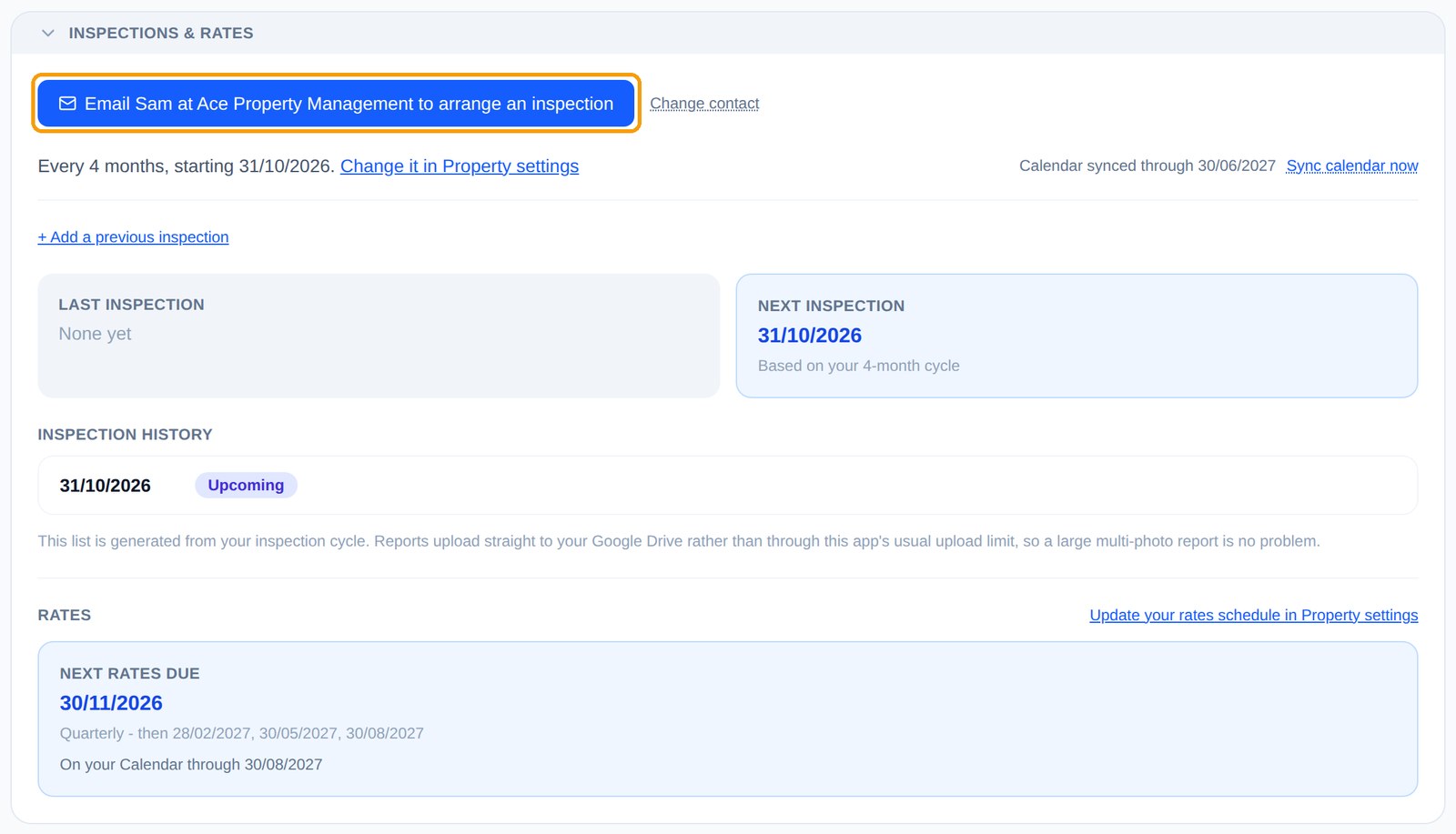
See when the next inspection and the next rates payment are due, worked out from the schedules in Property settings, and add them to your Google Calendar. If a property manager does your inspections, one click opens an email to them to arrange the next one. Upload each inspection report against its date to build up a history — reports go straight to your Google Drive, so large photo-heavy reports are fine.
See it for yourself
Add your rental, and keep the rent, paperwork, receipts and inspections in one place.
Get startedBuying carpets, curtains or a heat pump for the rental? Read Chattel Depreciation for NZ Rental Properties.
Screenshots use a test property with made-up documents, receipts and figures. This is general information, not personalised tax advice — check anything that affects your tax at ird.govt.nz or with an accountant.