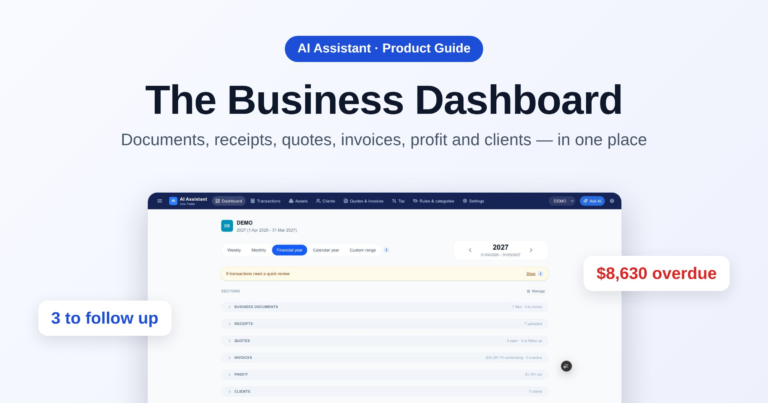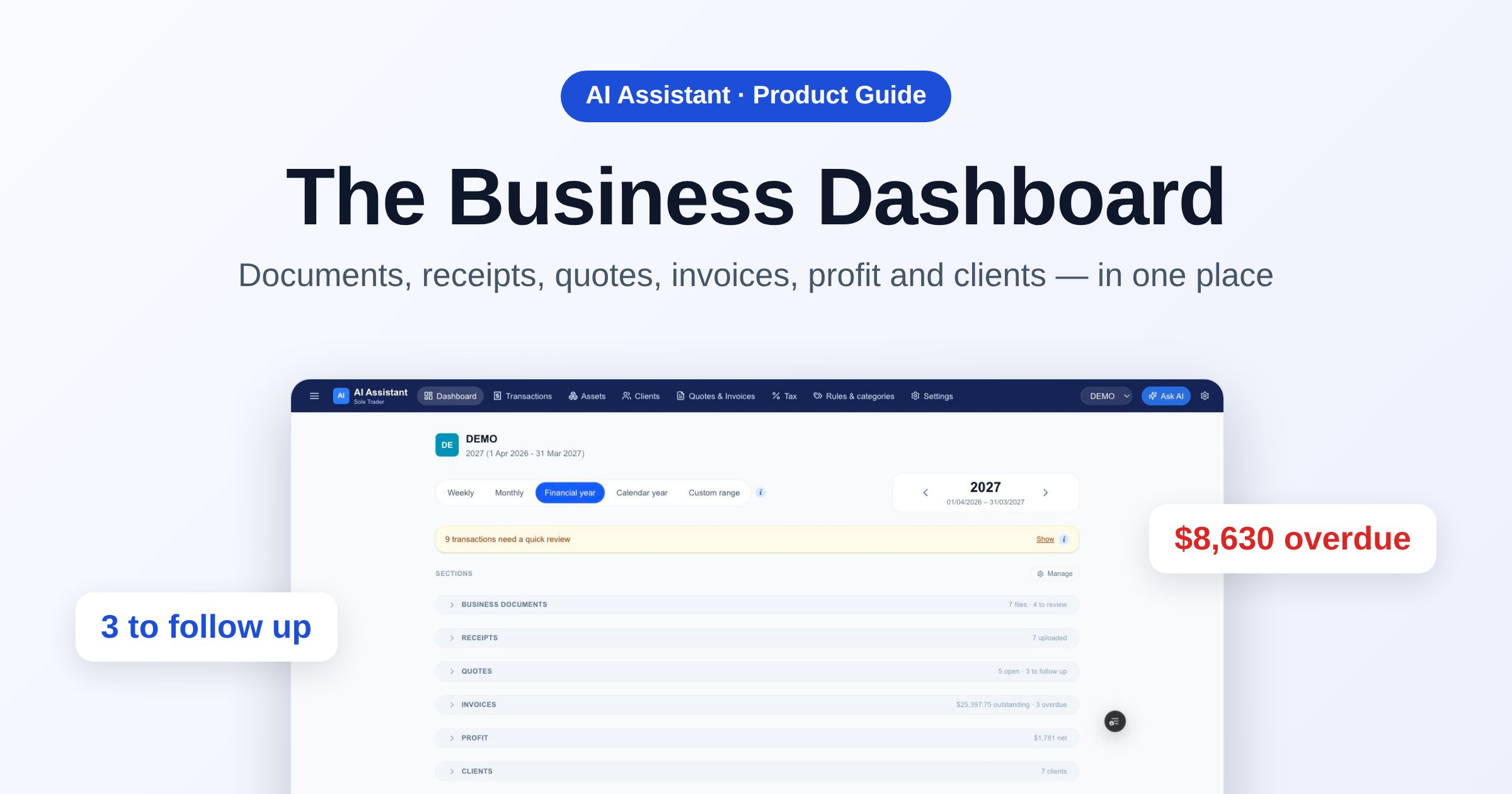
Running a one-person business means keeping track of paperwork, receipts, quotes, invoices, who owes you money and whether you’re actually making any. The Business Dashboard in Barnaby puts all of that on one page. Here’s what each section shows and what you can do in it.
1. One page for the whole business
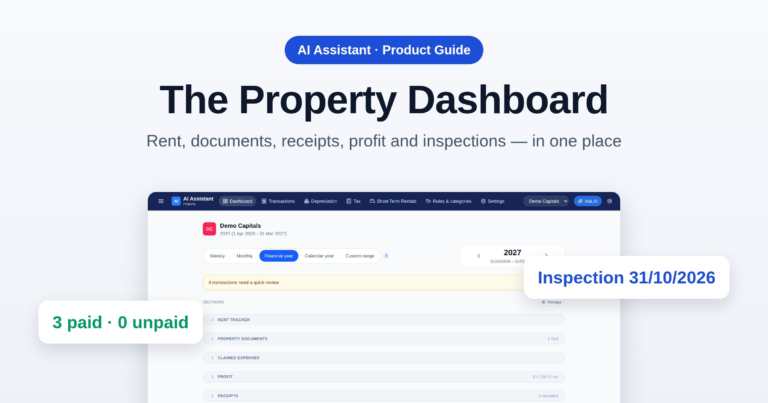
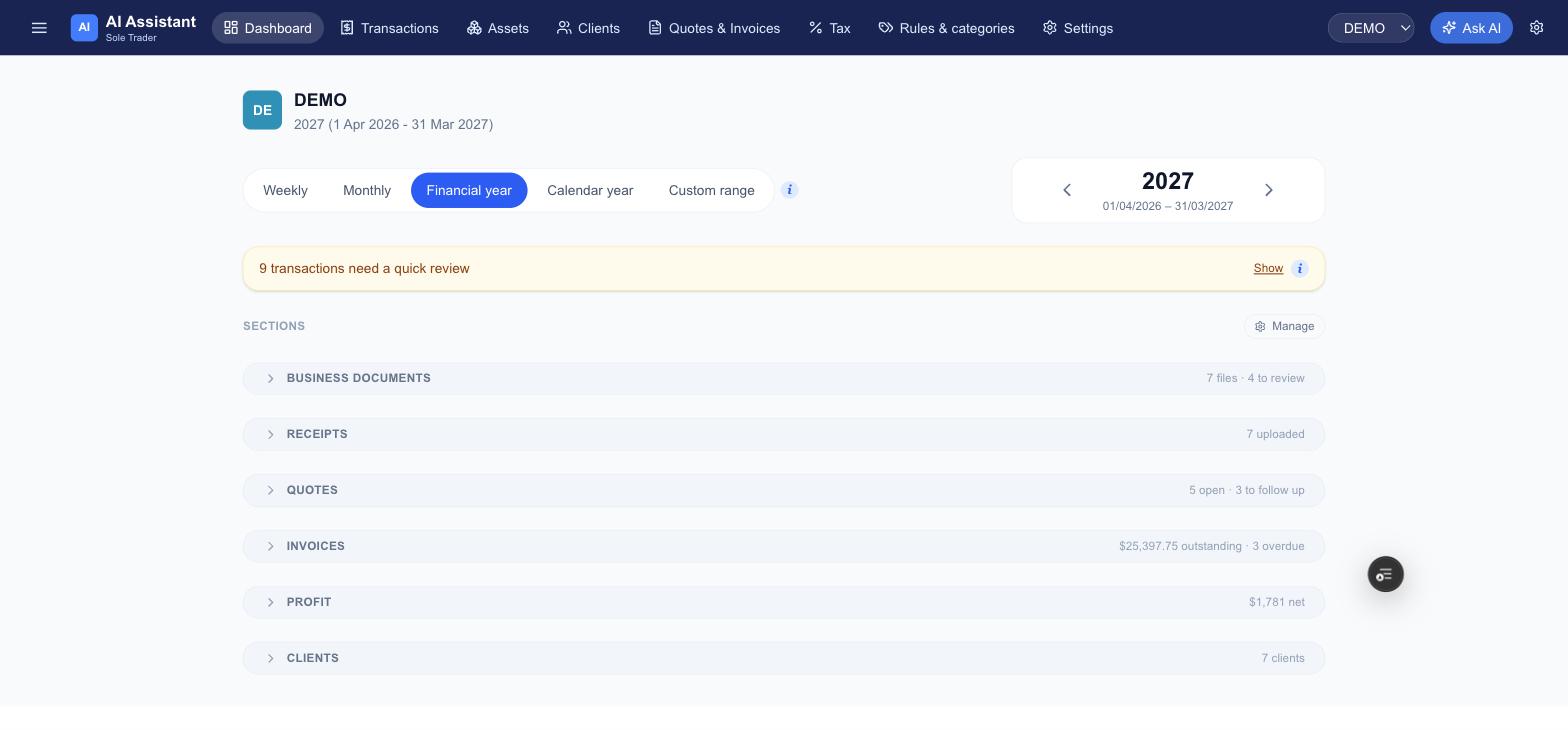
Each business has its own dashboard. At the top you pick the time period — a week, a month, a financial year, a calendar year or any custom range — and everything on the page follows it. If any transactions still need a quick look, an amber bar tells you so and takes you straight to them.
Underneath is a list of sections, each collapsed to one line with a live summary on the right — 5 open · 3 to follow up, $25,397.75 outstanding · 3 overdue — so you can see what needs attention without opening anything. You can drag the sections into whatever order suits you.
2. Business documents
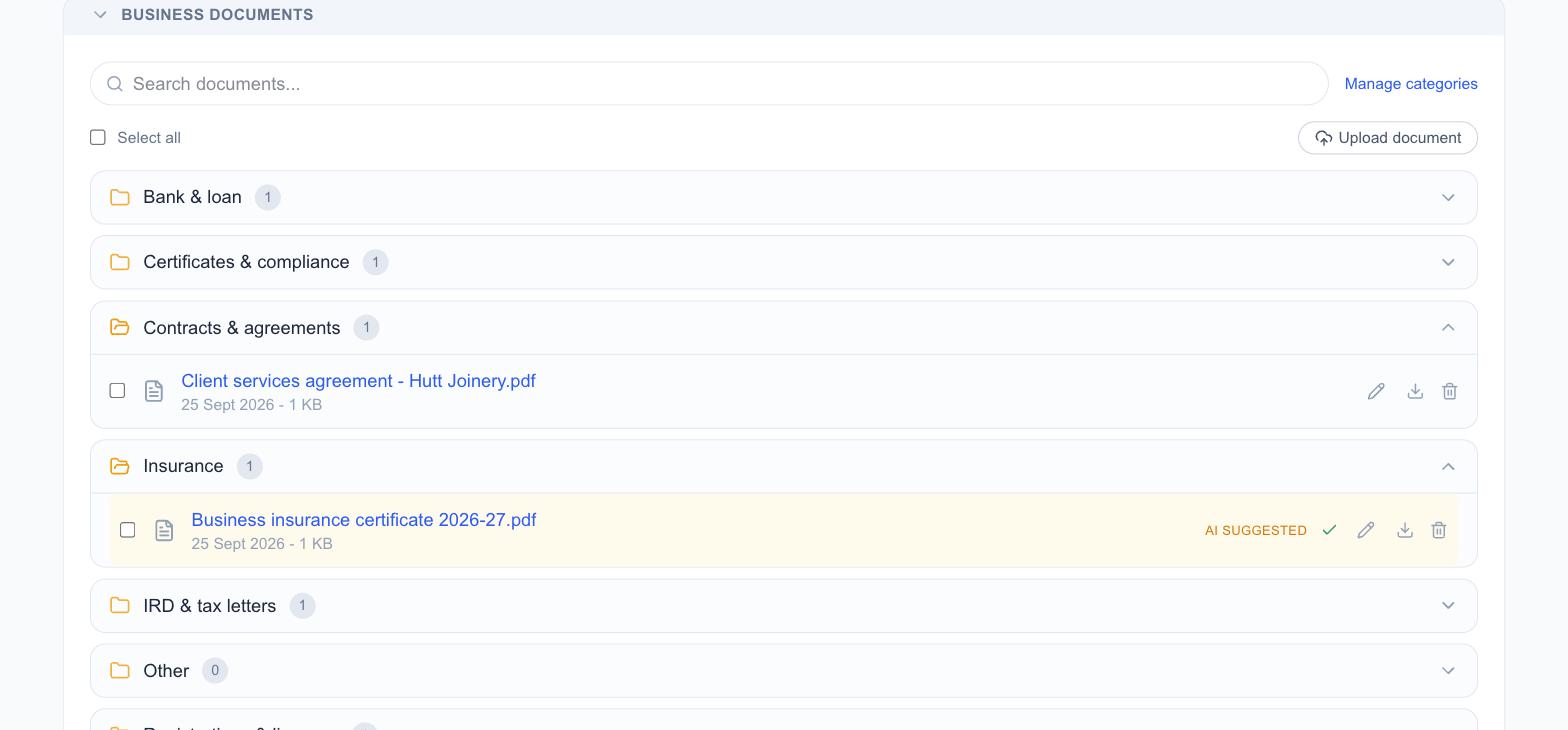
Insurance certificates, contracts, registrations, IRD letters, loan statements, vehicle paperwork — the documents a business accumulates and then can’t find. Business documents keeps them in folders by category. Upload one or several files and the AI reads each and files it in the folder it thinks is right, marking it AI suggested until you confirm with a tick or change it with the pencil. You can add your own folders too.
3. Receipts — and cash purchases
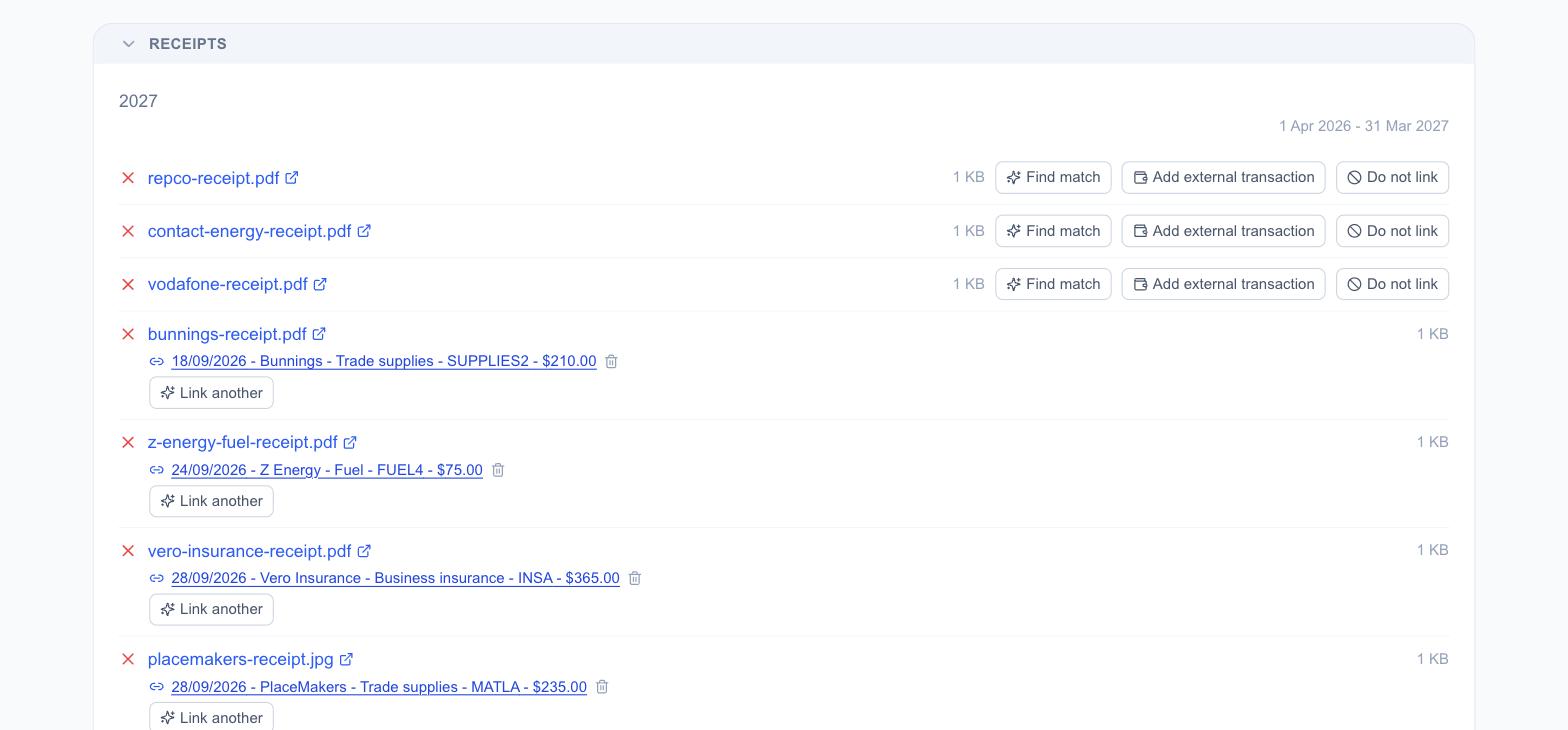
A receipt is the evidence behind a claim, so each one should be tied to the transaction it paid for. Upload a batch of photos or PDFs; the red bin icon beside a receipt deletes it (it goes to your Google Drive trash), so only click it to get rid of one.
If it came through your bank: Find match
Click Find match and Barnaby reads the receipt — it shows Reading… for a few seconds — then looks for the transaction with the same amount and date.
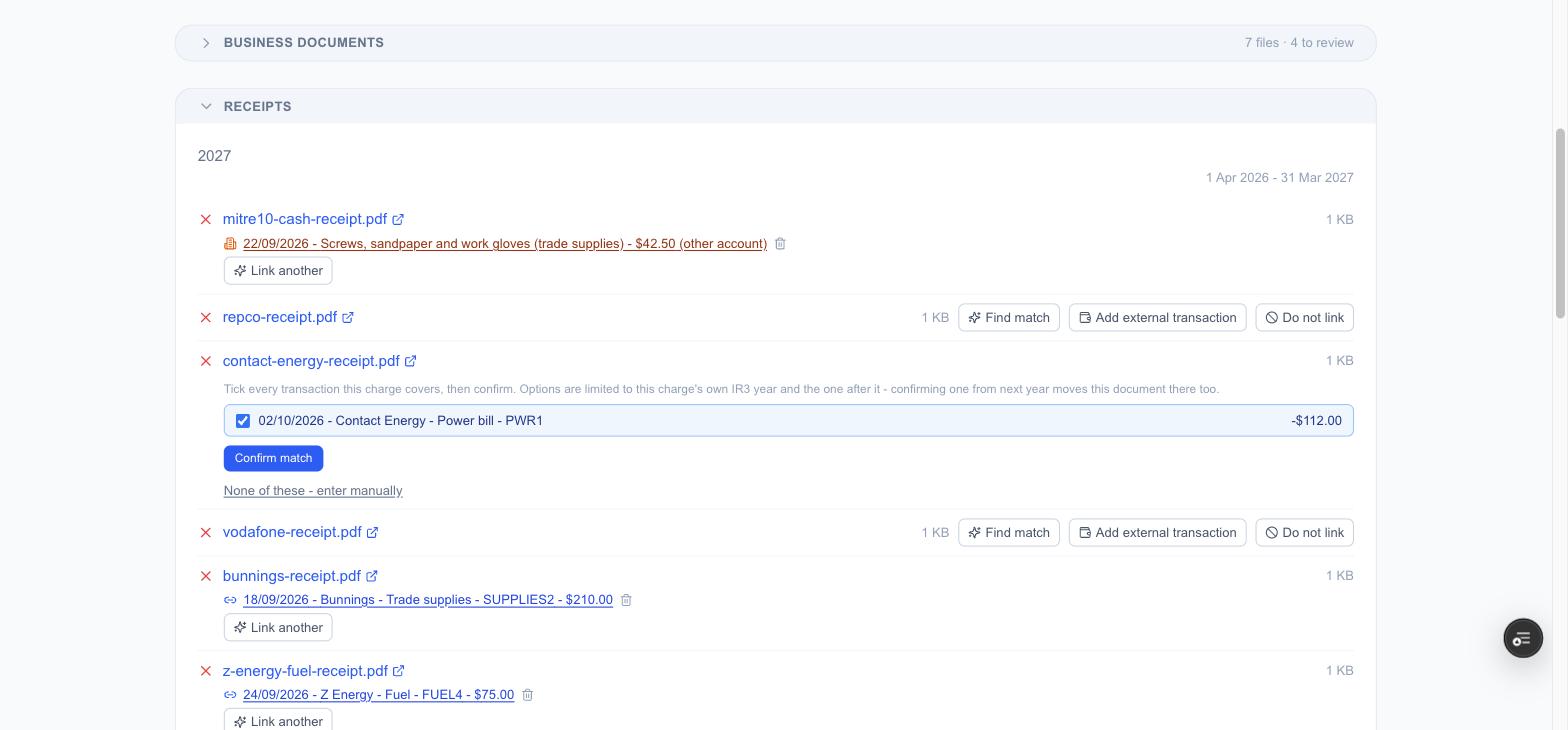
When it finds one, it shows you the suggestion rather than linking it straight away. Tick every transaction the receipt covers — one receipt can cover several charges — then click Confirm match. If it isn’t the right one, choose “None of these – enter manually”.
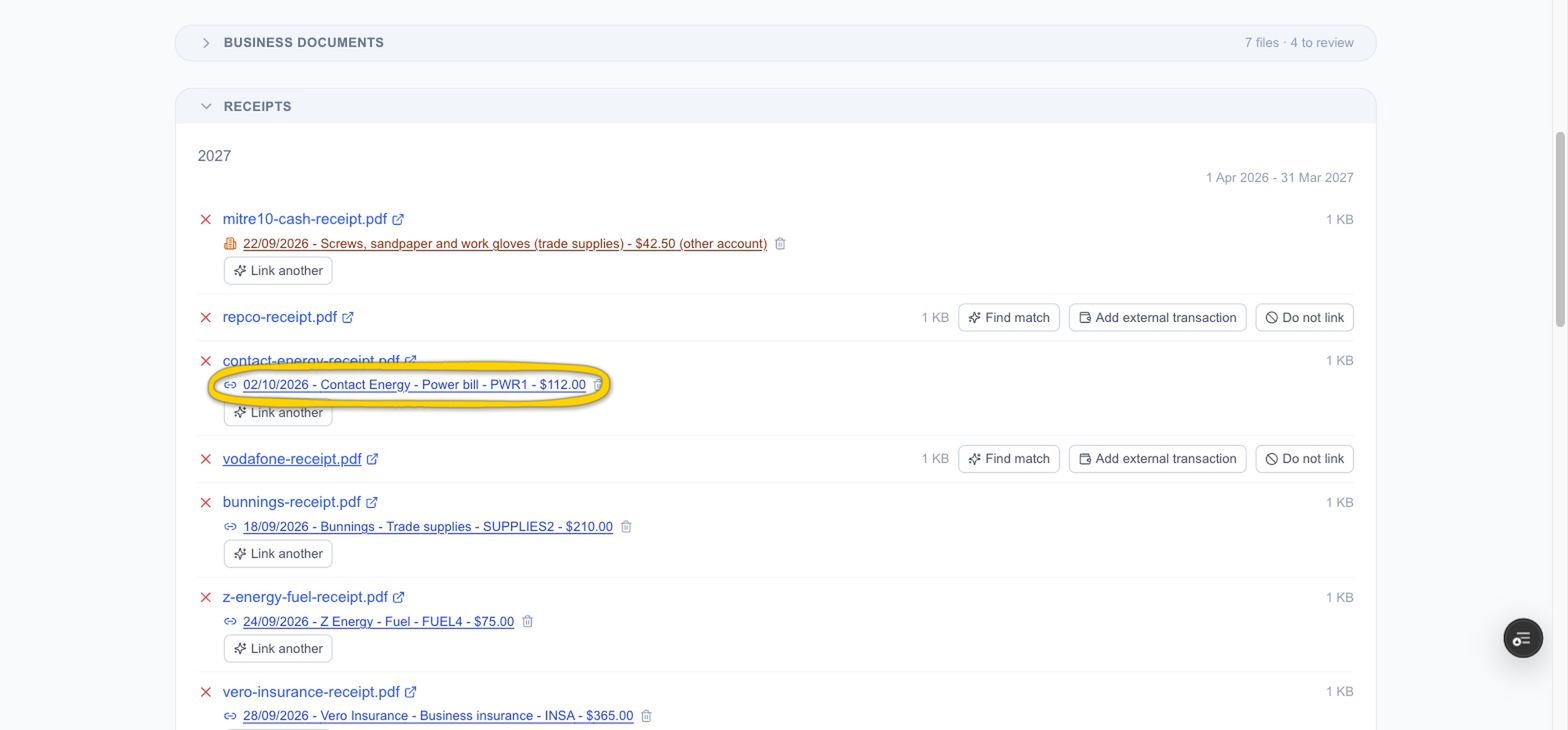
Once you confirm, the receipt shows the transaction it’s linked to. Use Link another if the same receipt covers a second charge, or the bin icon beside the link to unlink it.
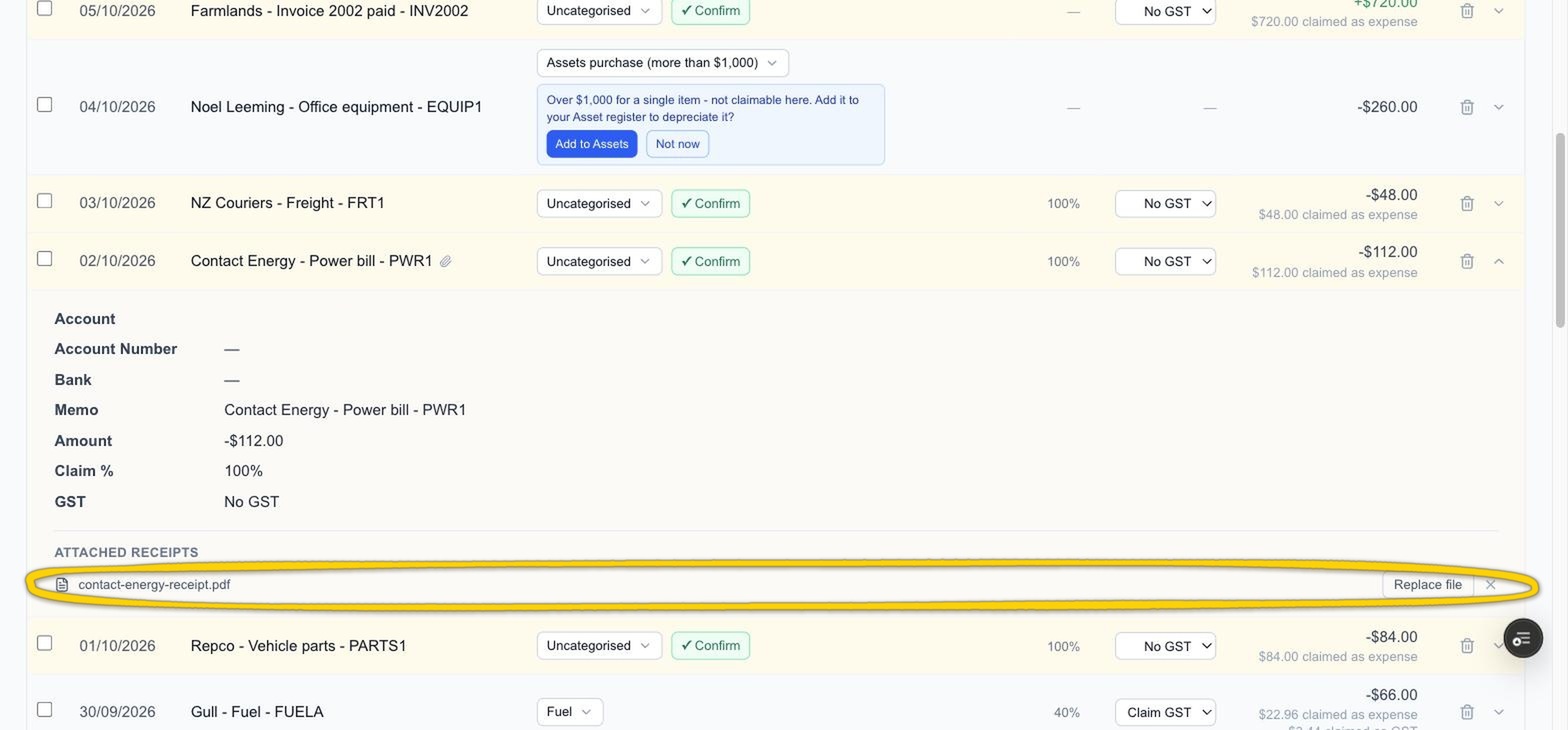
Over in Transactions, that purchase now carries a paperclip, so you can see at a glance which purchases have their receipt attached. Expand the row and the transaction’s details are listed, with the receipt under Attached receipts, where you can replace or remove the file.
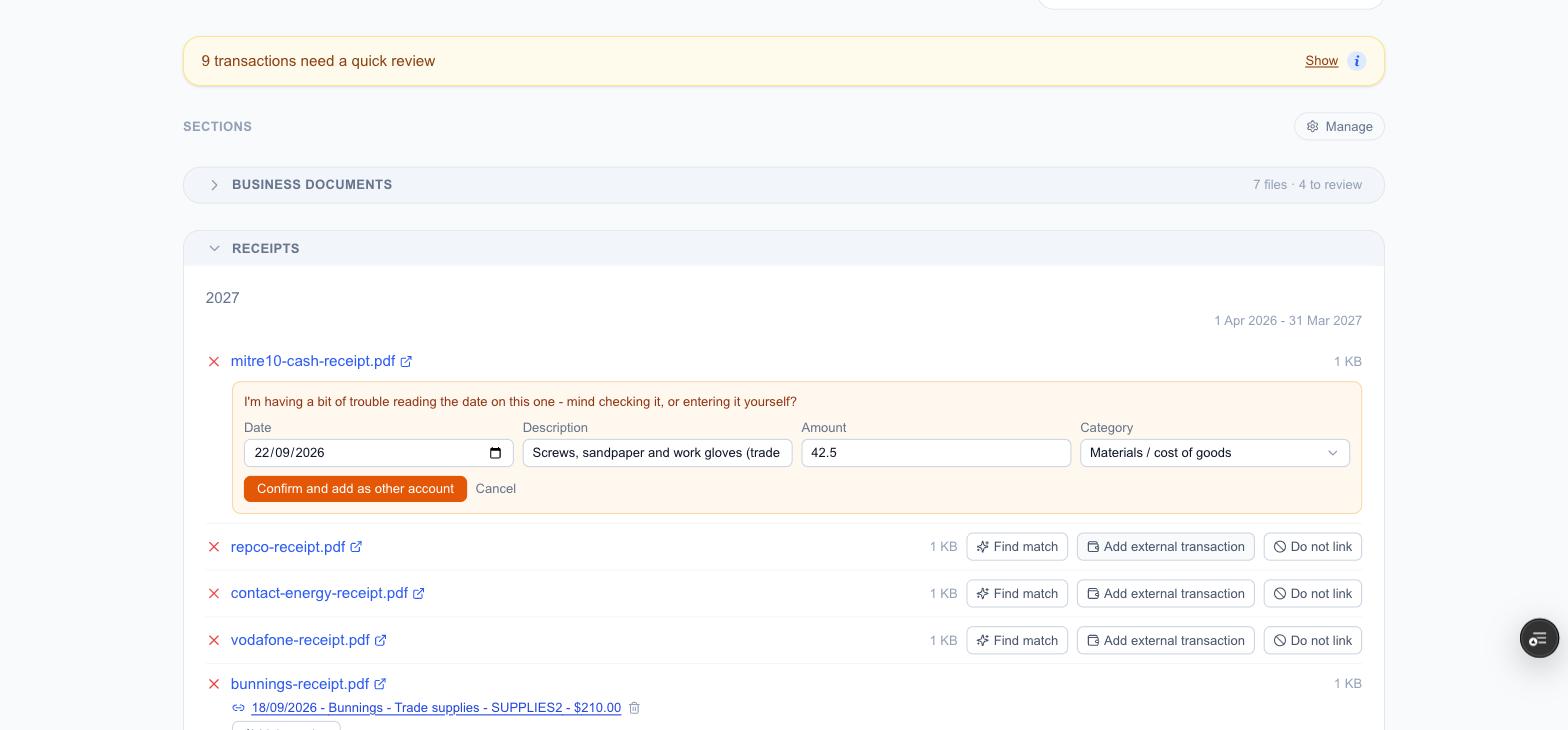
If it didn’t: Add external transaction
Not every purchase goes through a bank account you’ve linked — cash from your pocket, a personal card, or an account that isn’t connected. There’s nothing in your bank feed to match those to, so click Add external transaction and Barnaby creates the transaction for you from the receipt itself. It reads the receipt and pre-fills the date, description and amount; you check them (it tells you if it couldn’t read something clearly), choose a category, and confirm.
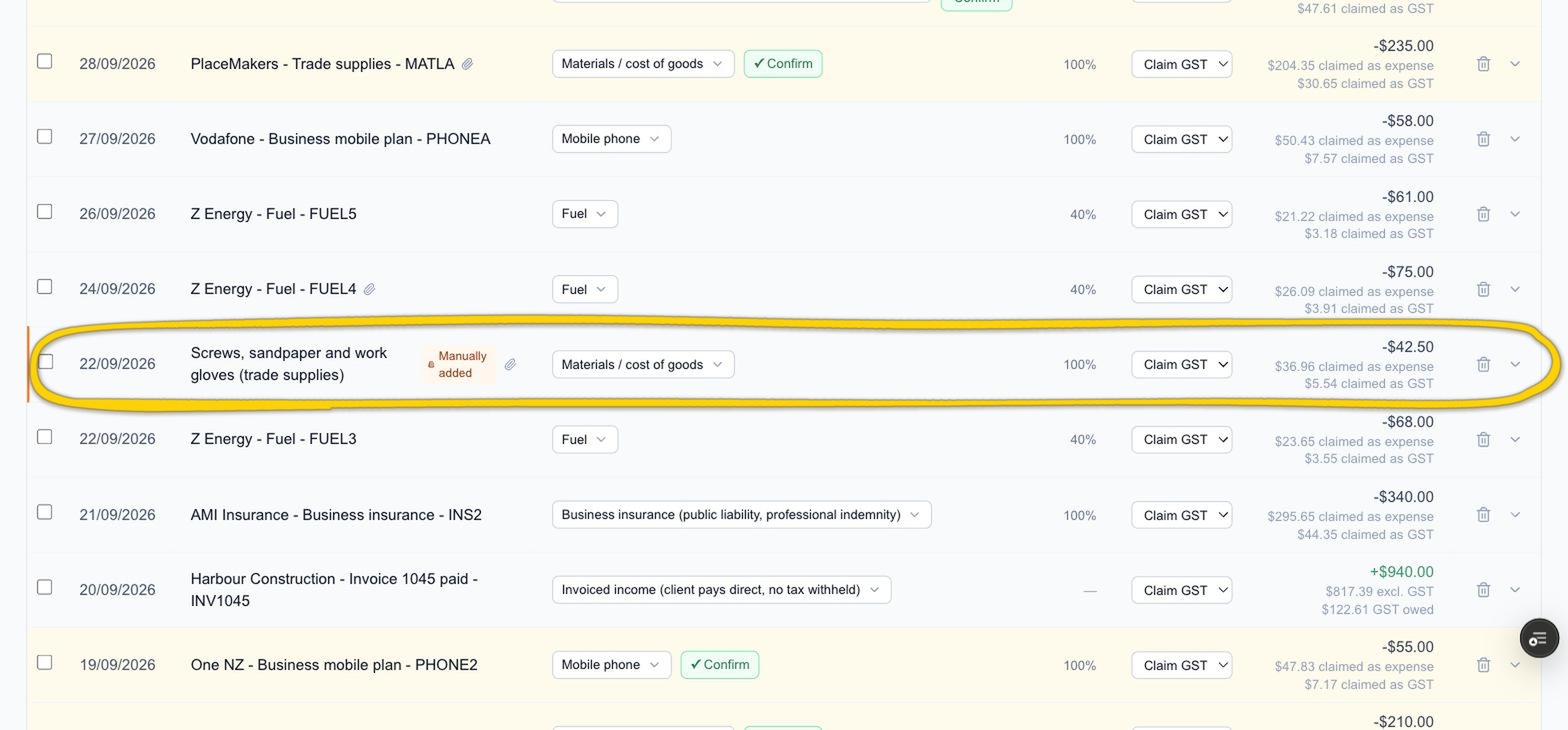
The receipt is now linked to the new transaction and labelled (other account). Open Transactions and the purchase is there like any other — marked Manually added so you can tell it didn’t come from the bank, with the receipt attached and the GST and claimable amounts worked out from the category you chose.
For a document that will never have a matching bank transaction — an annual policy whose payments you record separately, say — choose Do not link so it stops asking.
4. Quotes — and following them up
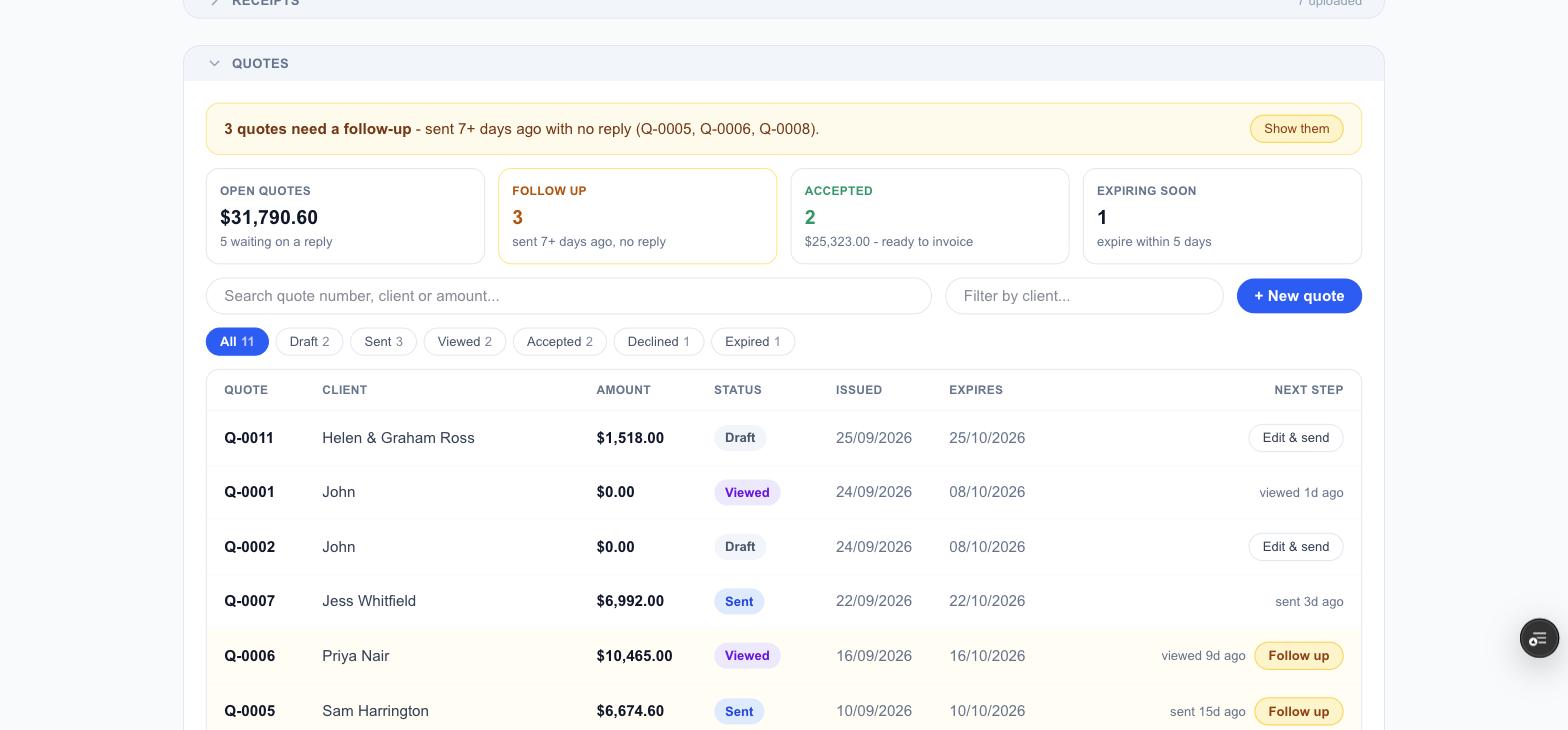
Every quote you’ve sent, with the numbers that matter across the top: the value still waiting on an answer, how many need a follow-up (sent a week ago with no reply), how many were accepted and are ready to invoice, and how many are about to expire. Filter by status or client, search by number or amount, and start a new quote with + New quote.
Following up on a quote
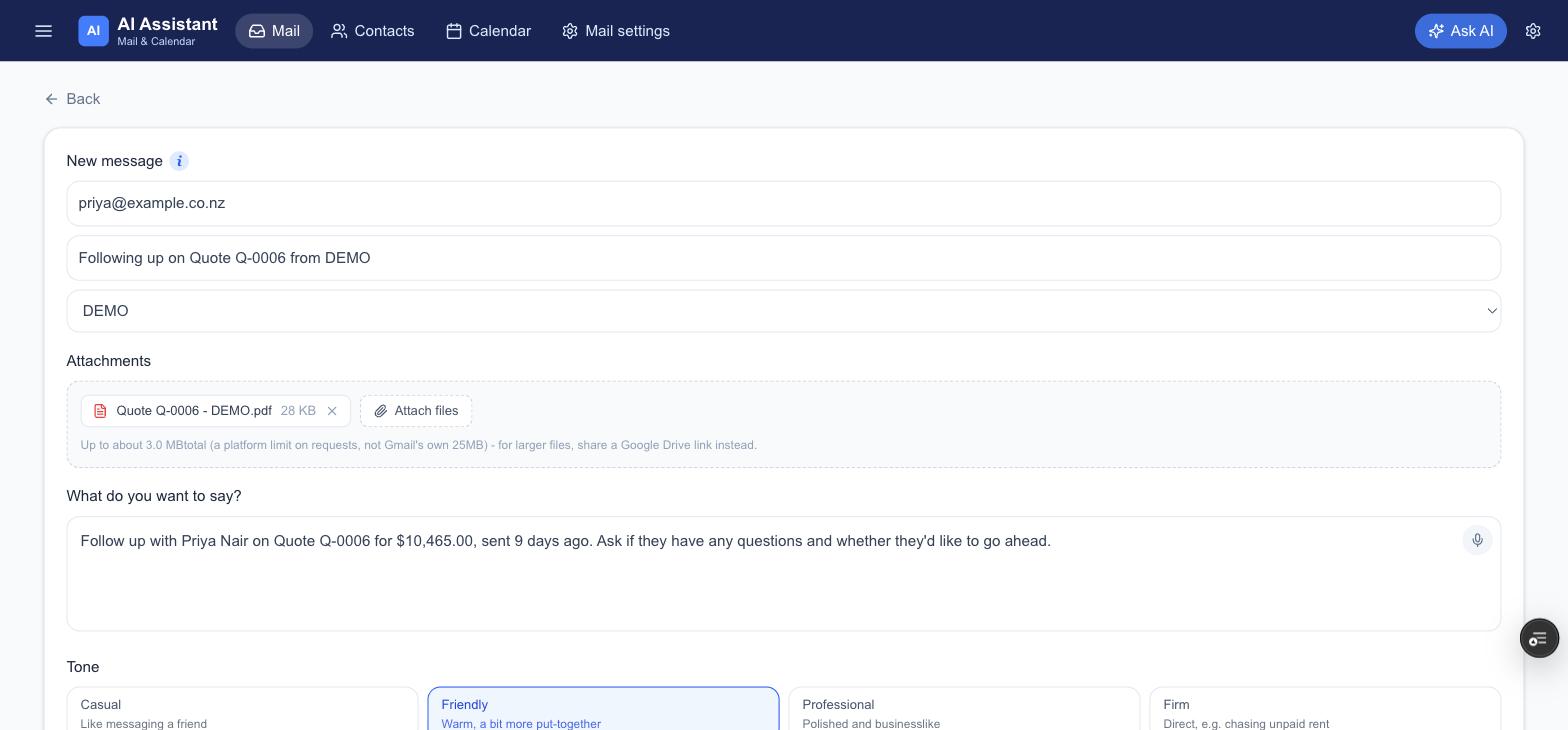
Most quotes that go unanswered aren’t a “no” — the client just got busy. Once a quote has been out for a week with no reply, an amber banner appears and the quote is highlighted. Click Follow up and an email opens already addressed to the client, with a subject line, the quote PDF attached and a note of what you want to say.
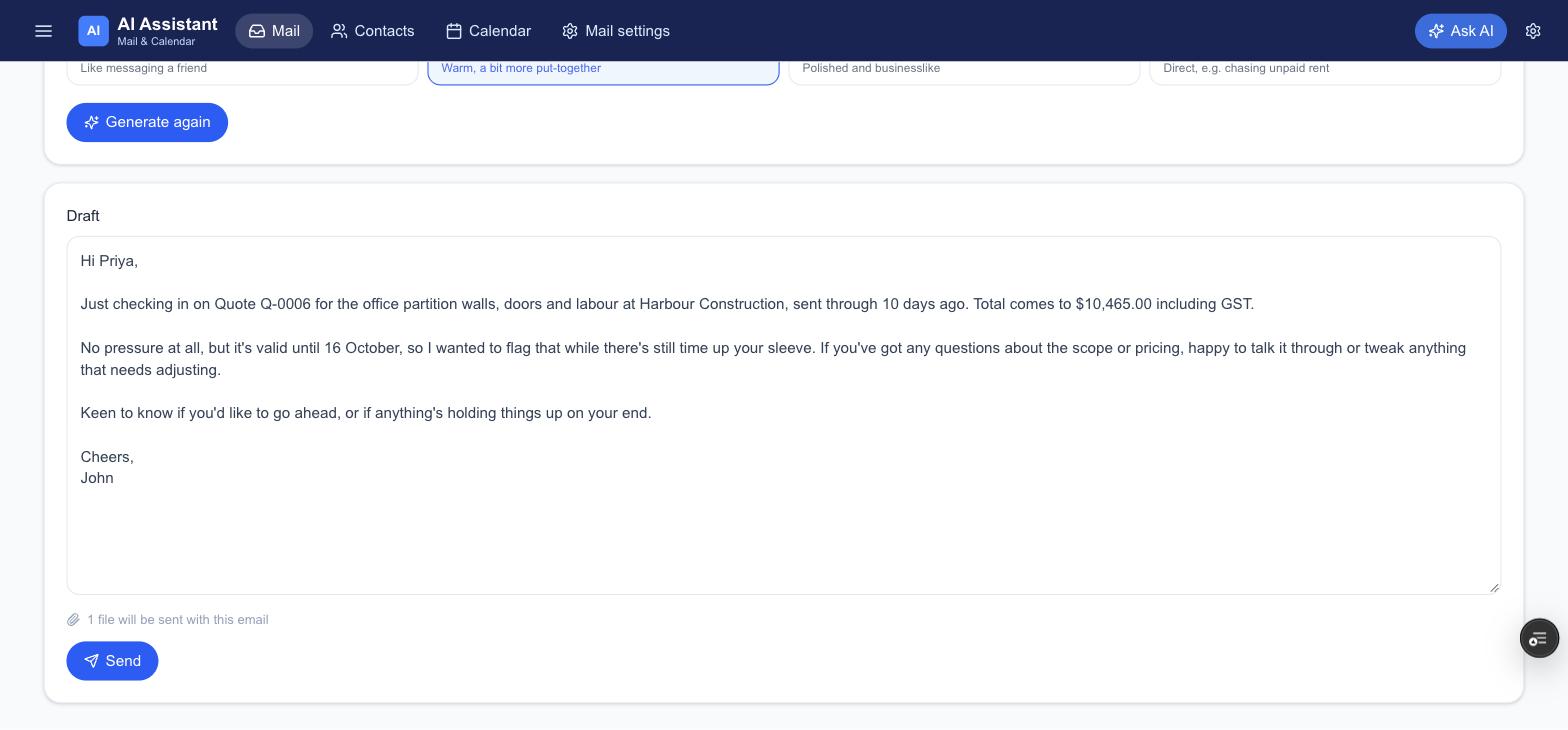
Pick a tone, from casual to firm, and click Generate draft. Barnaby writes it from the quote’s real details — the number, the total, what it covers and when it expires — and ends on one simple question. Edit it if you like, then send. Nothing goes until you click Send.
5. Invoices — and chasing payment
The same idea for money coming in. Tiles show what’s outstanding, what’s overdue, what’s due this week and what you were paid this month. Overdue invoices are shaded red with how many days late they are. When payment lands in your bank account, Match payment links it to the invoice and marks it paid.
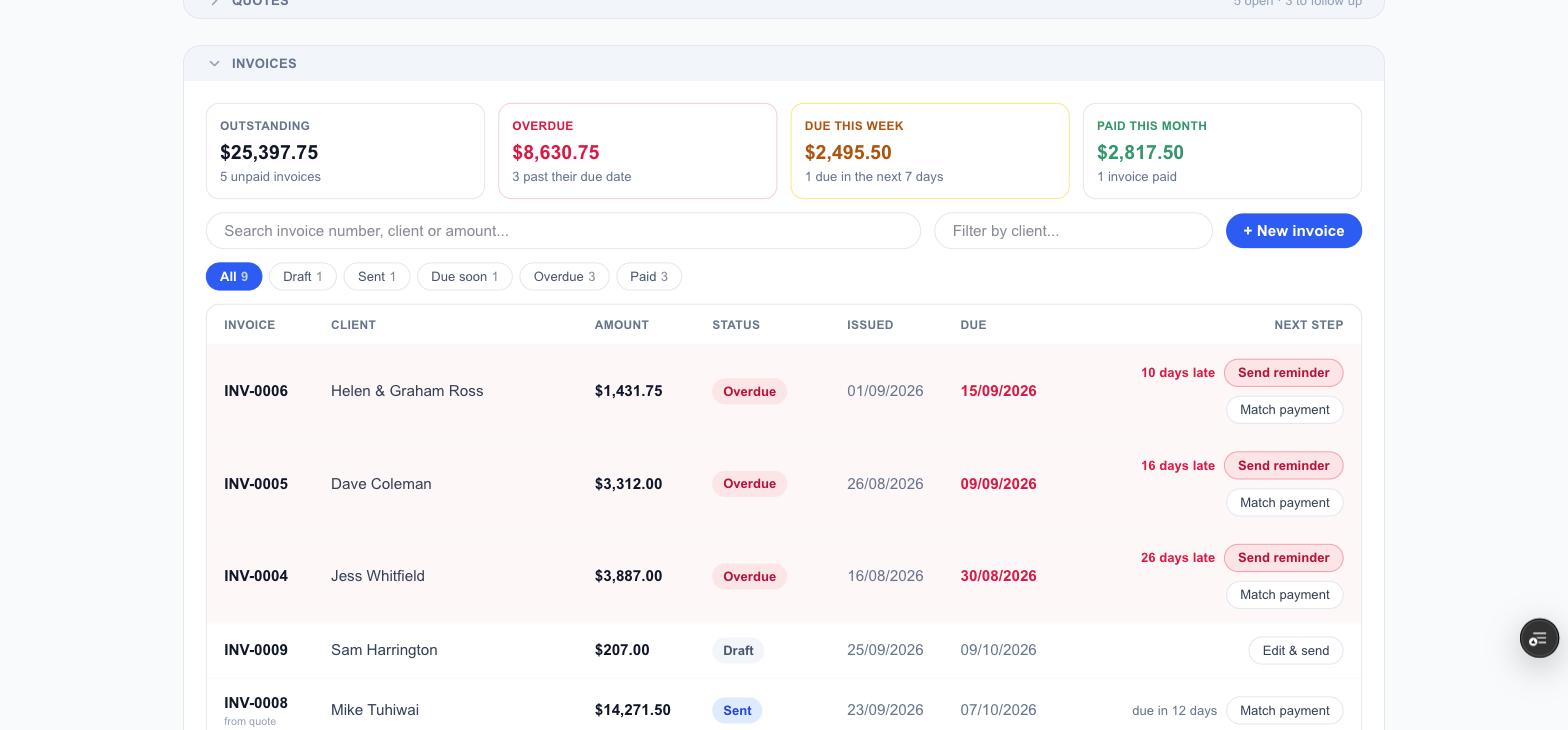
Chasing an overdue invoice
Click Send reminder and the composer opens with the client’s address, the invoice PDF attached, and the business already selected so the AI knows who the email is from.
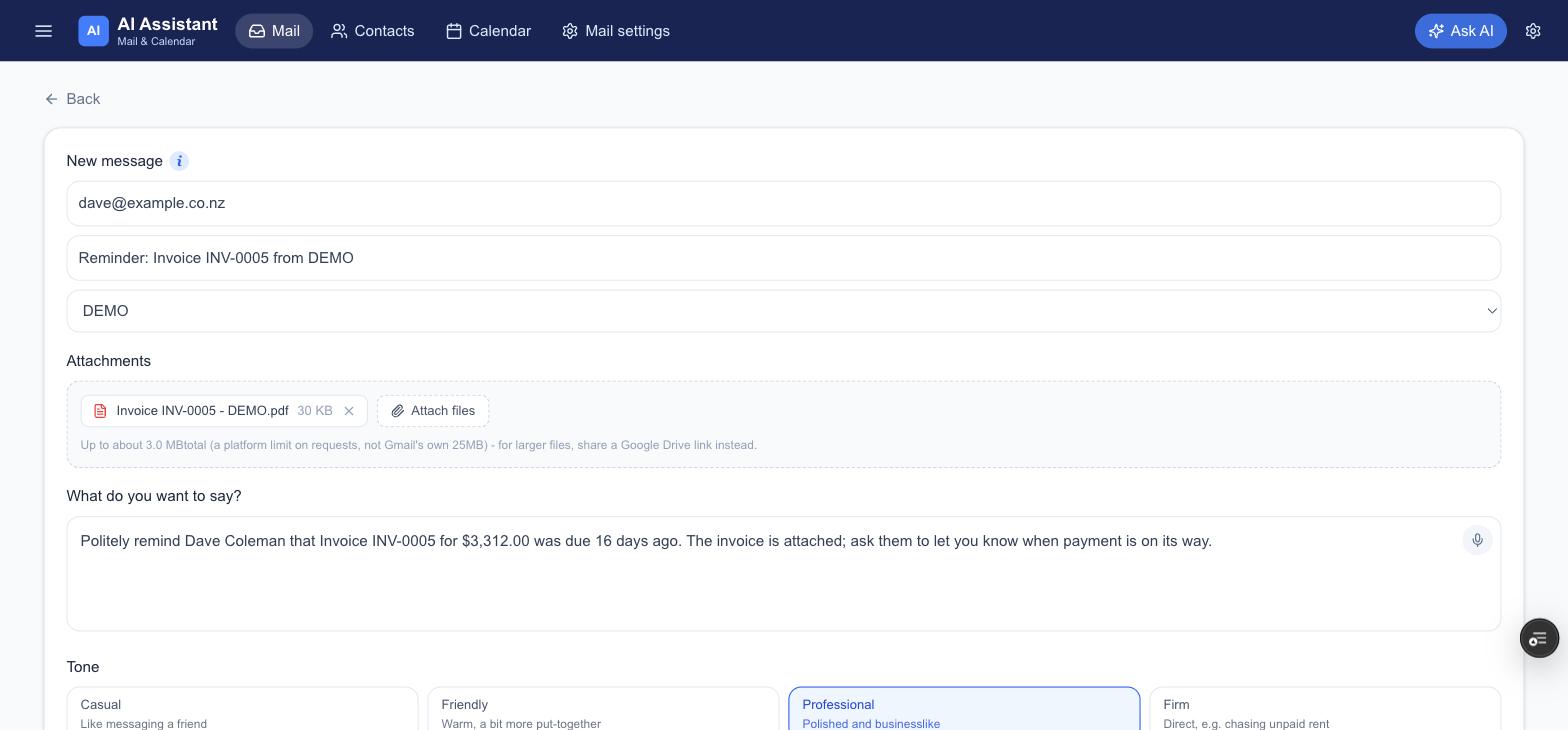
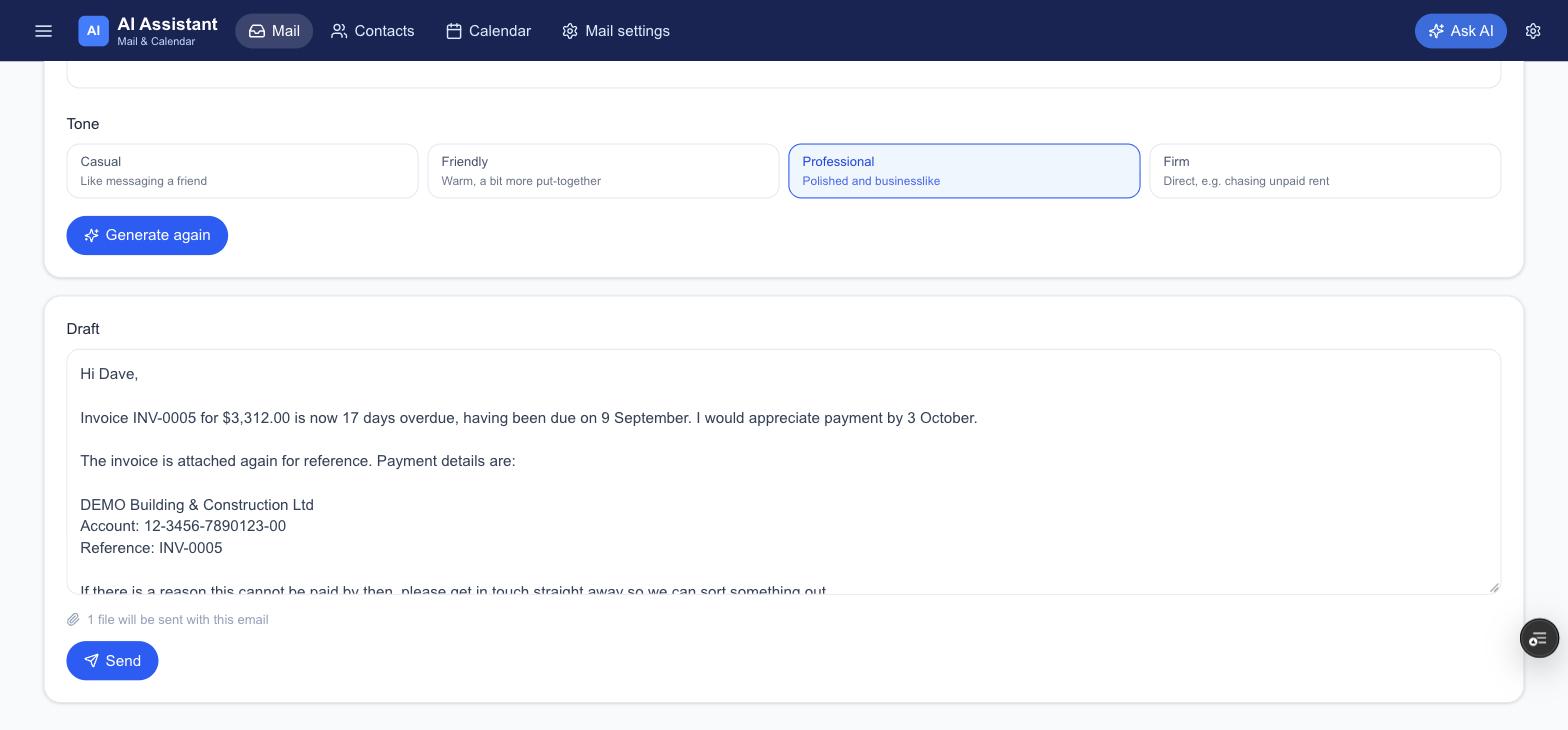
Generate the draft and Barnaby uses the real invoice number, amount and due date, adds your bank details with the invoice number as the payment reference, and gets firmer the longer the invoice has been overdue — a gentle nudge in the first week, a request for a payment date in the second, a firm pay-by date after that. Edit it, send it, and you’re done.
6. Profit
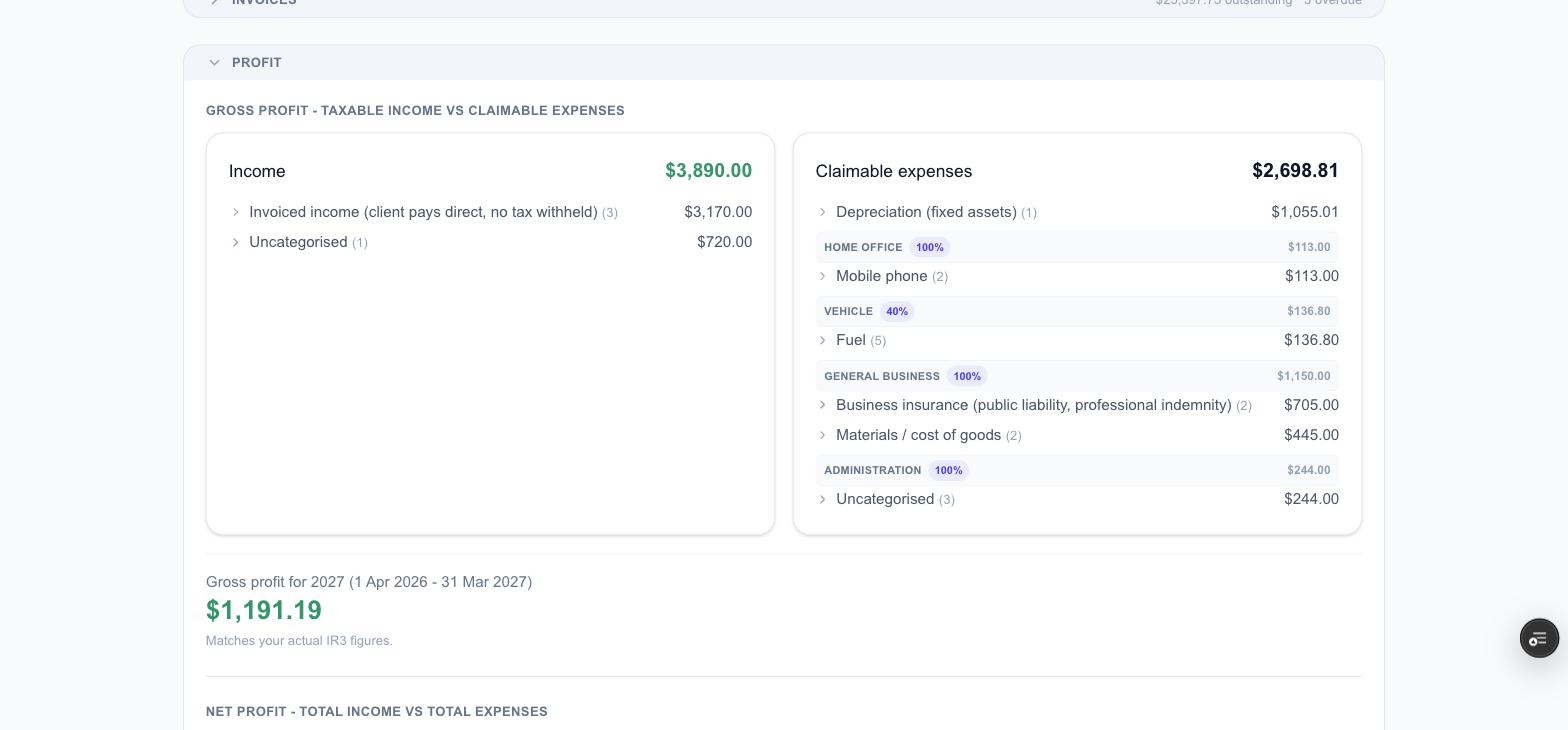
Gross profit compares your taxable income with the expenses you can actually claim — after business-use percentages, GST and depreciation — and matches the figures that go on your IR3. Net profit shows total income against total expenses, the plain “what did I keep” view. Click any line to see the transactions behind it. Your estimated tax to set aside and your GST position live on the Tax page.
7. Clients
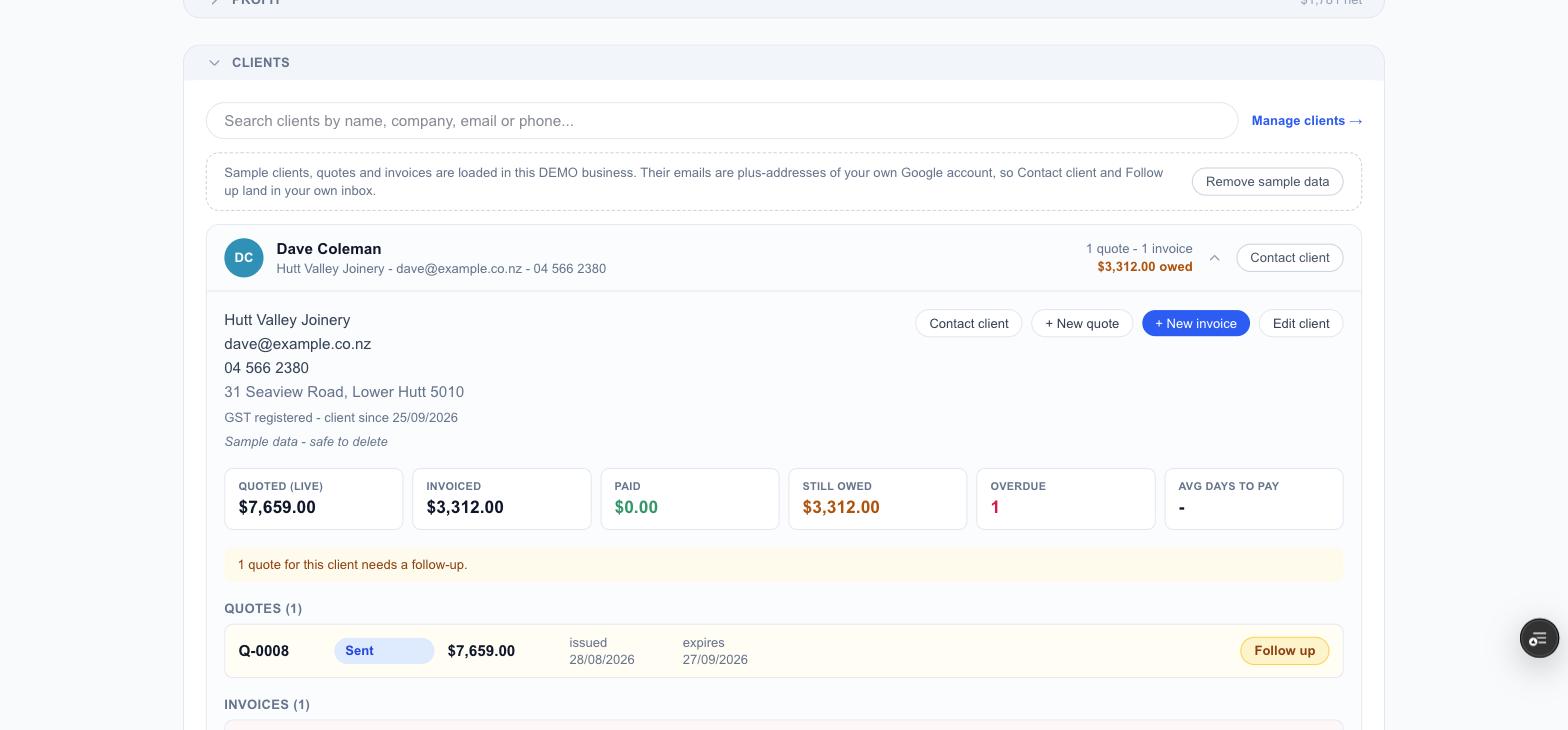
Everyone you invoice, with how many quotes and invoices they have and what they currently owe. Click a client and their row expands into a one-page summary: contact details, how much you’ve quoted, invoiced and been paid, what’s still owed, what’s overdue and how many days they usually take to pay — plus every quote and invoice with its next action, and shortcuts to start a new quote or invoice for them. Contact client opens an email to them straight away.
See it for yourself
Add your business, and keep your documents, receipts, quotes, invoices and clients in one place.
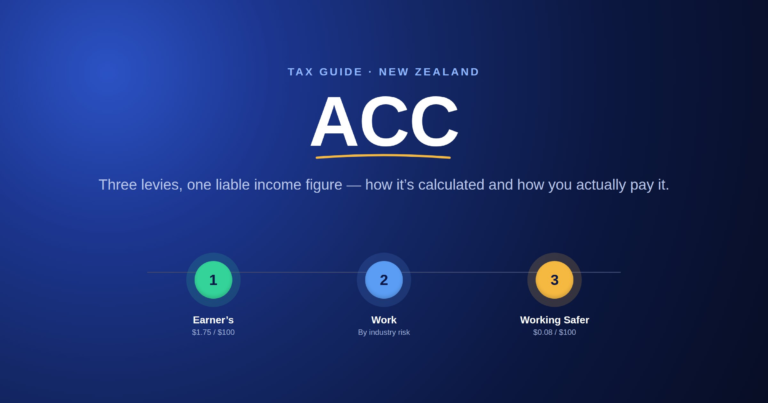
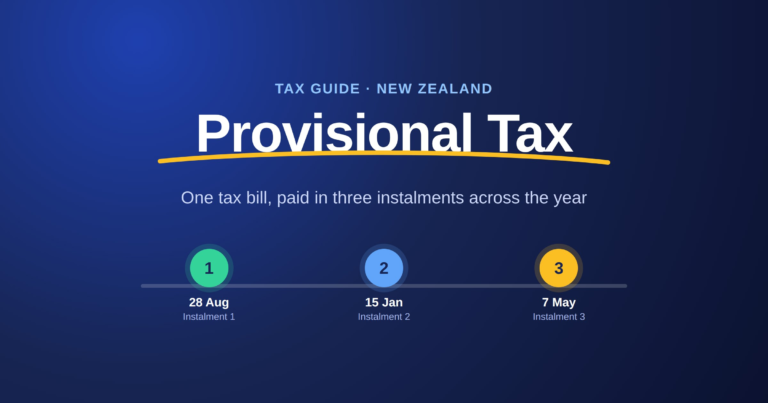
Get startedNew to the tax side? Read the full Sole Trader Tax in New Zealand guide, or the guides to GST and provisional tax.
Screenshots use a test business with made-up clients, documents and figures. This is general information, not personalised tax advice — check anything that affects your tax at ird.govt.nz or with an accountant.